Find the dashboard that answers your question about a Mac or the fleet. Monitoring macOS lays out what Collectord sends from each Mac under five menus: Overview, Hardware, Workloads, Health and Setup.
Every dashboard has a Period picker, and most have Fleet label, Hardware class and Mac pickers:
- Fleet label is the
fields.macos_clustervalue (or theFleetLabelmanaged preference) each Mac sets, so one app keeps a CI fleet, a build farm and the company’s laptops apart. - Hardware class is
laptop,desktoporrack(see Configuration).
Every stat comes from the metrics index, read with mstats. The logs, crash reports and host events come from the events index.
Overview
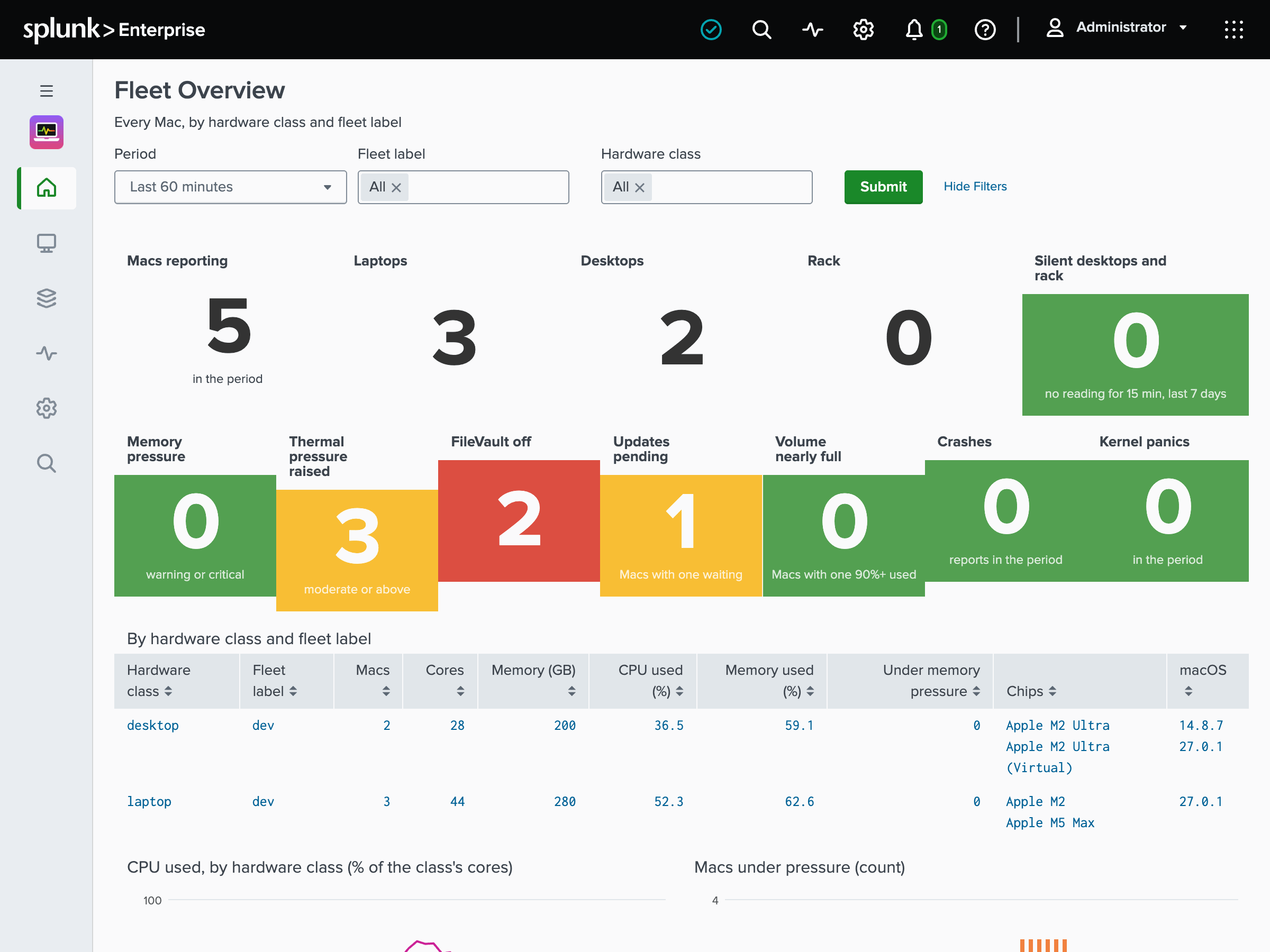
Fleet Overview is the landing page. It shows how many Macs report, split into laptops, desktops and rack, and the desktop and rack Macs that went silent. Then come the Macs under memory pressure, with their thermal pressure raised, with FileVault off, with updates pending or with a volume nearly full, and the crashes and kernel panics of the period.
A table breaks the fleet down by hardware class and fleet label. Charts show the CPU each class uses, the Macs under pressure, and the fleet by chip and by macOS version.
Macs is one row per Mac. Each row has the Mac’s fleet label, class, model, chip, serial number, macOS version and firmware, cores and memory. Then come its CPU and memory use, the worst memory and thermal pressure of the period, FileVault, pending updates, swap, load, uptime and when it last reported.
Under the table, tabs chart the busiest Macs: CPU, Memory (memory used, pressure, compressed memory and swap), Paging and load, and Users, who is logged in on each.
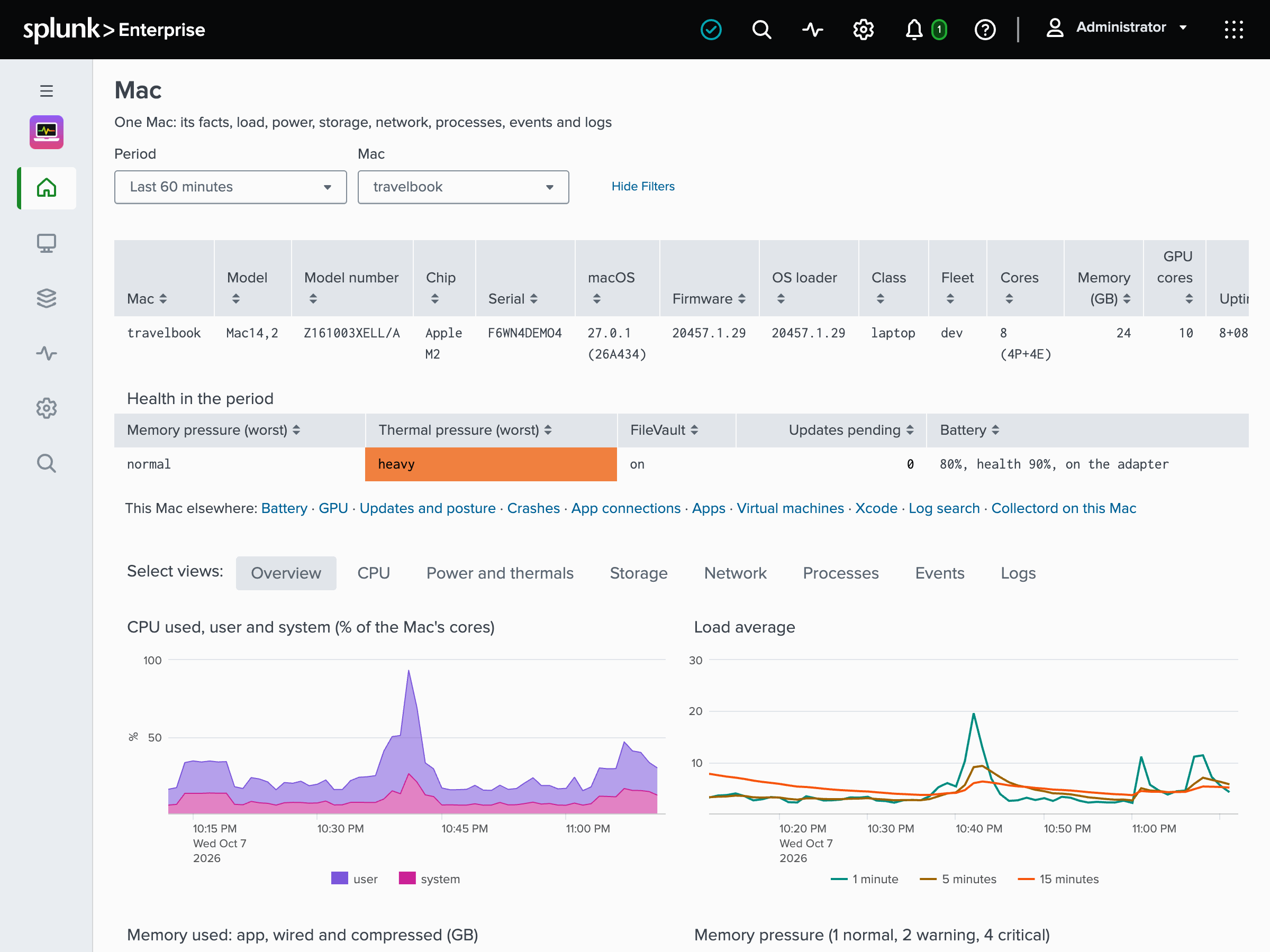
Mac is one Mac in depth: the period’s health at the top, then these tabs:
- Overview has CPU, load and memory as macOS splits it (app, wired, compressed, cached files and free), memory pressure, the memory available, swap and the swap files on disk, and paging and the compressor. It also has who is logged in and each login and logout, and the Mac’s network addresses, local accounts, launch items (with whether launchd starts each one) and background items.
- CPU has each cluster’s activity, power and frequency, and each core’s user and system time. The frequencies are the one the cores asked for, the one they were given and the maximum.
- Power and thermals has power by component, the chip and the whole machine, thermal pressure, temperatures by sensor group, the fans, and whether a process holds sleep off.
- Storage has the filesystems, one row per APFS container, and each disk’s throughput and latency.
- Network has each interface’s traffic, errors and drops, the connections and the listening sockets.
- Processes has the executables by CPU and by memory footprint, and the busy processes.
- Events has the host events, the launchd services and their transitions, and the crash reports.
- Logs has the unified log entries by pack and by level, and the latest ones.
Process is one executable across the fleet or the Macs you pick: how many run it, its CPU, CPU power, memory footprint, disk I/O and wakeups, by Mac, and its busy processes.
Top
Top Macs ranks the Macs by CPU, GPU, memory, memory pressure, swap, disk and network I/O, power, and the hottest sensor with the worst thermal pressure.
Top Processes ranks the executables across the fleet by CPU, CPU power, memory footprint, disk I/O or wakeups. Everything else is folded into (other), and the processes that exited between two readings are shown too: the compiler jobs that are most of a build’s CPU. So the shares add up to the whole fleet.
Hardware
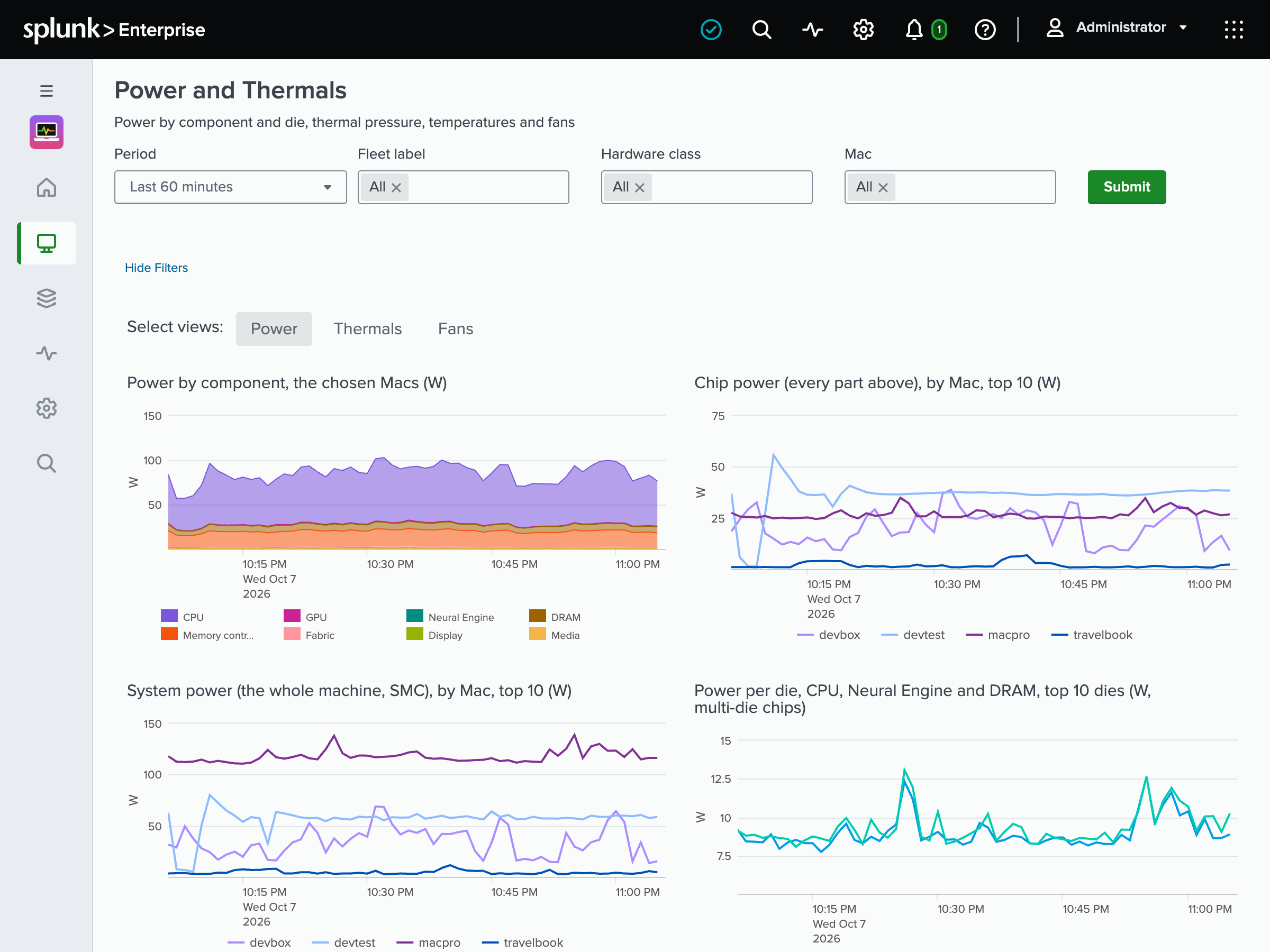
Power and Thermals is what the Macs draw and how hot they run, on three tabs:
- Power: power by component (CPU, GPU, Neural Engine and DRAM), the chip and the whole machine, and per die on a chip of two.
- Thermals: the thermal pressure by Mac, the Macs that left nominal and for how long, and temperatures by sensor group.
- Fans: each fan’s speed and where it sits in its range.
At heavy thermal pressure, macOS slows the CPU and GPU, so a build or an inference job on that Mac runs slower than its hardware promises.
GPU and Neural Engine has GPU utilization, frequency, memory and power by Mac, and the Neural Engine’s power.
Storage has the Filesystems, one row per APFS container, with the ten fullest and the ten with the least free space. Its Disks show what each disk reads and writes, its operations, and its read and write latency.
Network is what the Macs’ interfaces move and whom they talk to:
- Interfaces has one row per interface with its traffic, packets, errors, drops and link, and which interfaces were up the least.
- Connections has the destinations on the internet, the processes connecting out, the Macs with a remote session in, and the destinations that never answered.
- Listening has the Macs with Screen Sharing, Remote Login or File Sharing on, and the ports open to the network, by port and application.
Collectord reports the physical interfaces, and VM bridges and VPN tunnels too when you set network.virtual and network.tunnels.
App Connections is which applications connect where. For each application, it has the remote addresses with their reverse-DNS names, countries, ports and direction, first and last seen, and what it received and sent over which interface. It also has a map of the application’s internet traffic by country, its traffic over time by remote address, and where it listens.
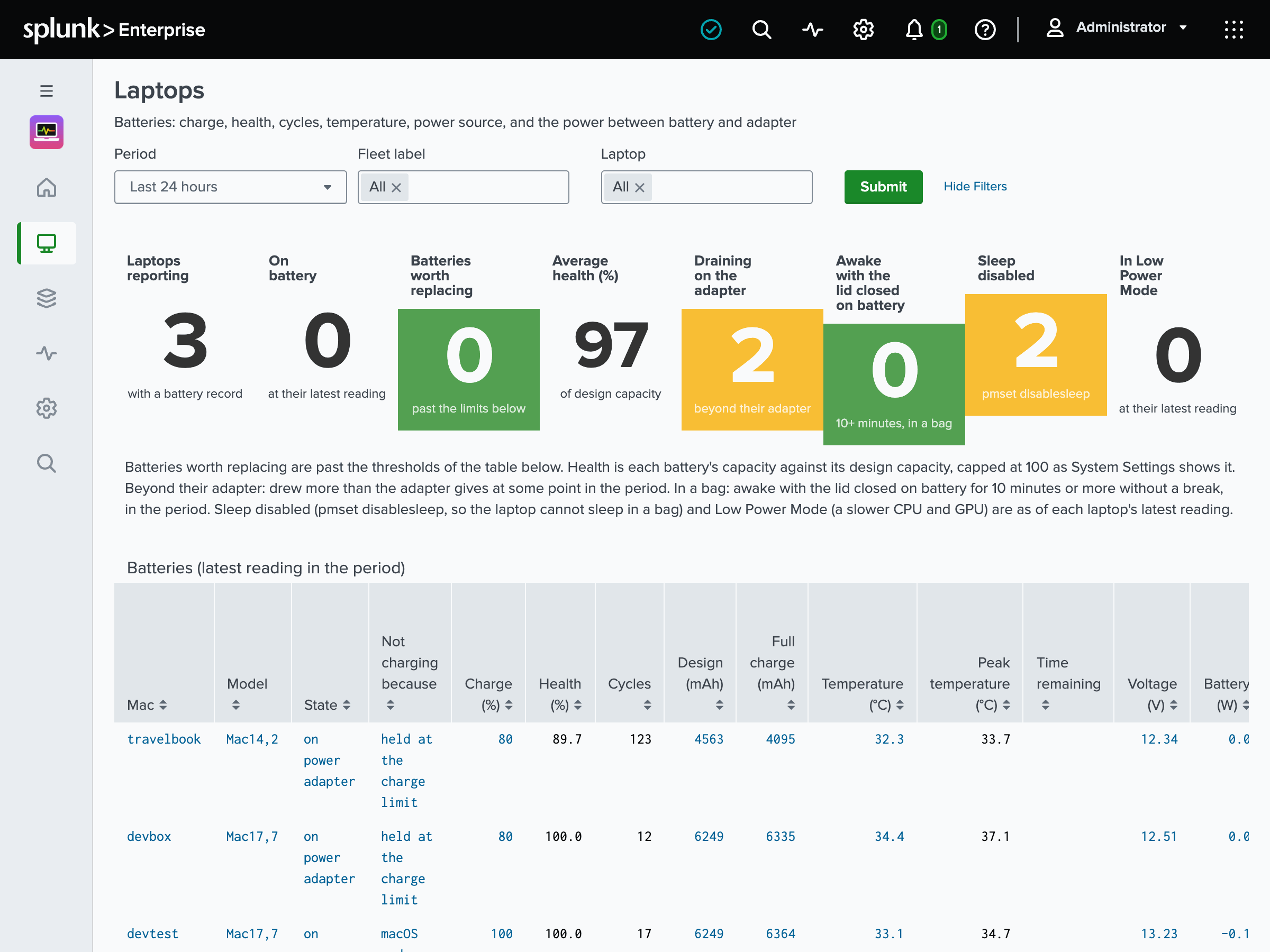
Laptops is the batteries:
- each battery’s charge, health, cycle count and temperature, and the batteries worth replacing;
- the laptops on battery, in Low Power Mode or with sleep disabled;
- the power between battery and adapter: a laptop drawing more than its adapter gives, and why one on its adapter is not charging;
- the executables ranked by the CPU energy they drew while on battery;
- charts of the time on battery and the power-source changes.
Workloads
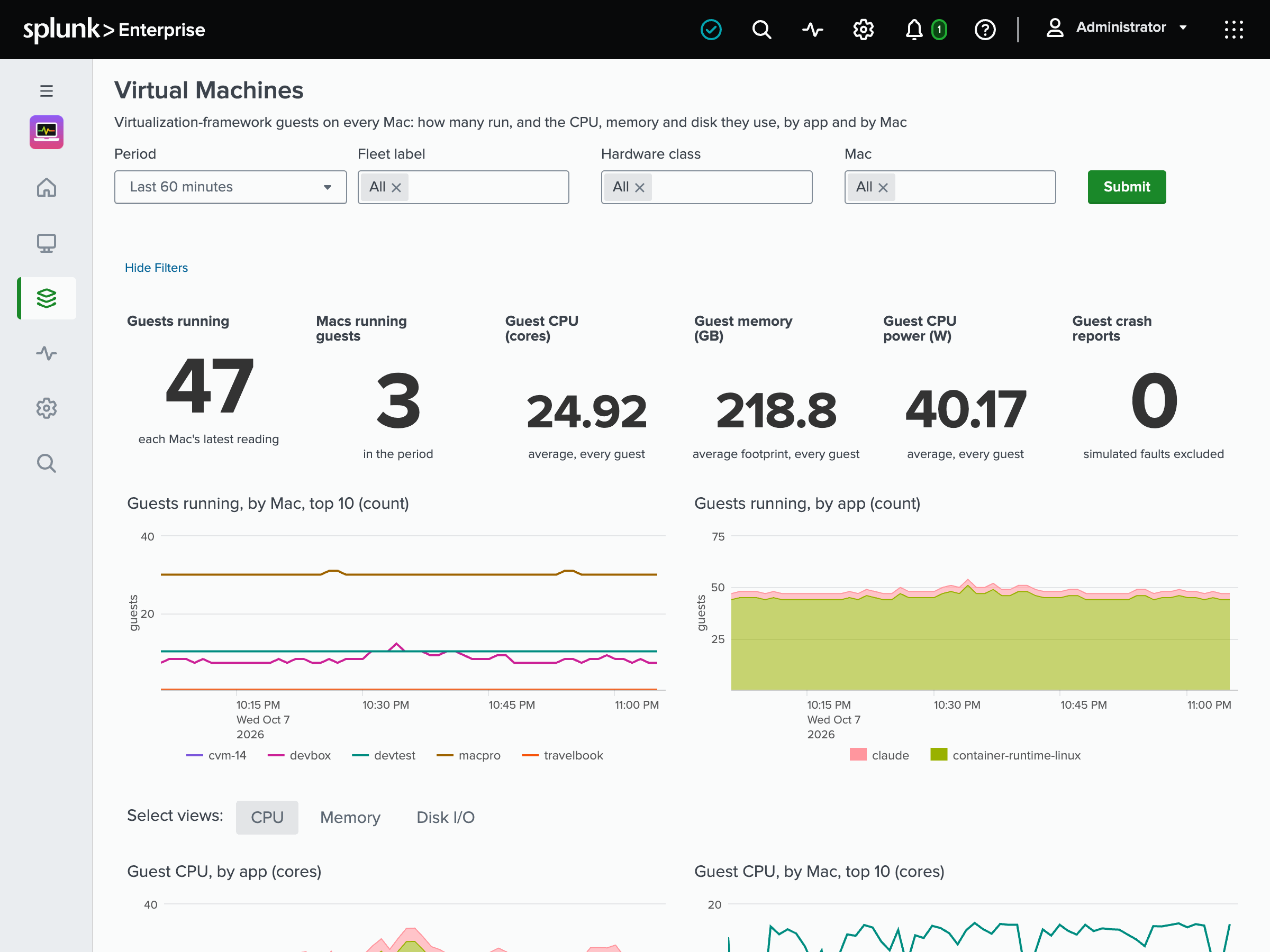
Virtual Machines is the Virtualization-framework guests, such as UTM, tart and Apple’s container runtime, by name and by app. It shows how many run on each Mac, their CPU, memory and disk I/O against the Mac’s cores and memory, and their crash reports.
Xcode and CI has the Xcode versions installed on each Mac, and the Macs with none selected. It shows what each user’s DerivedData and simulator devices take on disk, and the booted simulators. It also has the CPU and memory of the Xcode and simulator processes, and Xcode’s log entries and errors.
Health
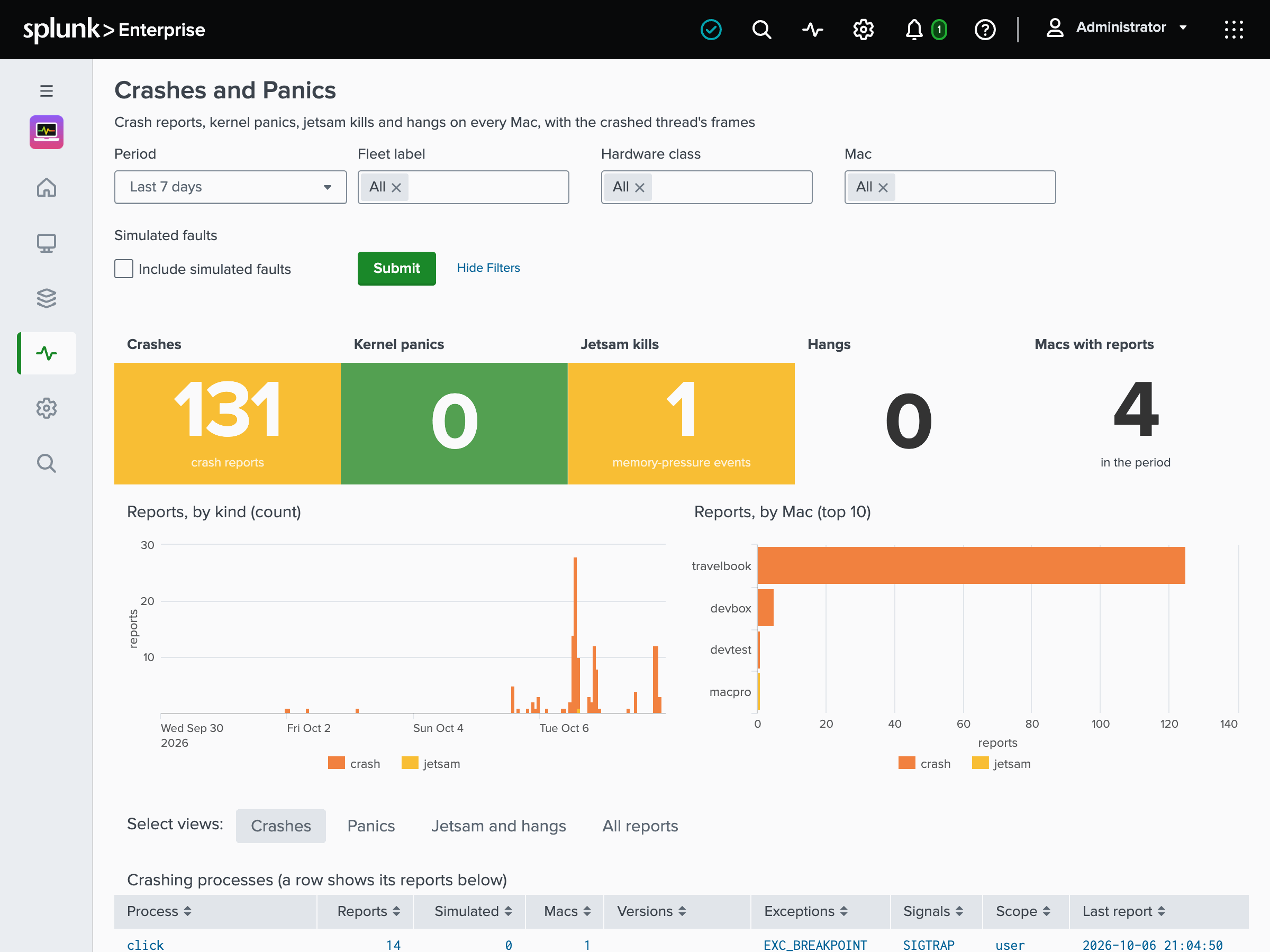
Crashes and Panics has the crash, hang, jetsam and kernel panic reports of the period, by kind and by Mac. It shows the crashing processes with their exception and the crashed thread’s first frames, the kernel panics with their panic string, and the processes each jetsam killed.
Updates and Posture has three tabs:
- Posture is each Mac’s FileVault, System Integrity Protection, Gatekeeper, firewall and MDM enrollment. Then come the ways in: Remote Login, Screen Sharing, File Sharing, the guest account and automatic login, and the screen lock a configuration profile enforces. It also has Activation Lock, the local administrators, whether sudo logs the commands it runs, and XProtect definitions behind the fleet’s newest.
- Updates is the software updates waiting on each Mac and for how long, the ones that need a restart, and the Macs whose last check failed or that have not checked in a week.
- Changes is when any of it changed.
Compliance is for an organization that runs the macOS Security Compliance Project’s compliance script. It shows each baseline’s passed, failed and exempted rules on every Mac, the rules failing across the fleet, the Macs not scanned in a week, and the rules that changed between two scans. Collectord reads the results the script leaves; it never runs the script.
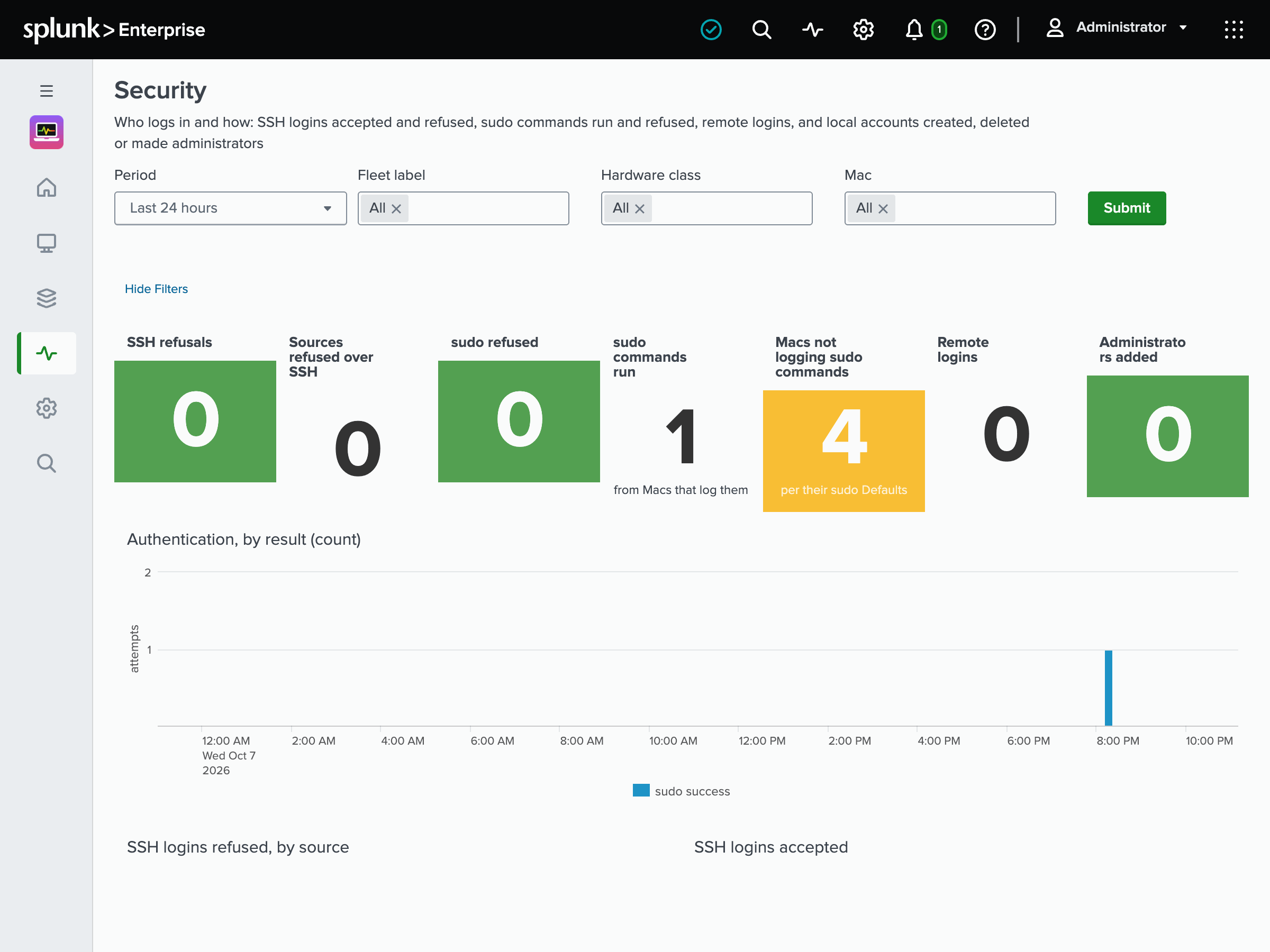
Security is who logs in and how:
- SSH logins accepted and refused, by source;
- sudo commands run and refused, and the Macs whose sudo does not log the commands it runs;
- remote logins;
- local accounts created, deleted or made administrators.
macOS 15 and later ship sudo with Defaults !log_allowed, which logs only its refusals (see Log forwarding).
Apps is every application installed across the fleet, iPhone and iPad apps included, with its version and what it runs on (Intel-only apps need Rosetta). It shows the Macs that have each one, and what was installed, updated or removed. From the install log, it has the packages installed on each Mac.
Host Events has boots, sleep and wake, thermal and memory pressure changes, power-source and network changes, and launchd services starting, exiting and restarting. It also has the launch items and background items added, removed or changed, logins and logouts, and local account changes.
The launchd services tab on Host Events lists every service Collectord reports across the Macs: how many run it, how many have it down after an error, and its restarts.
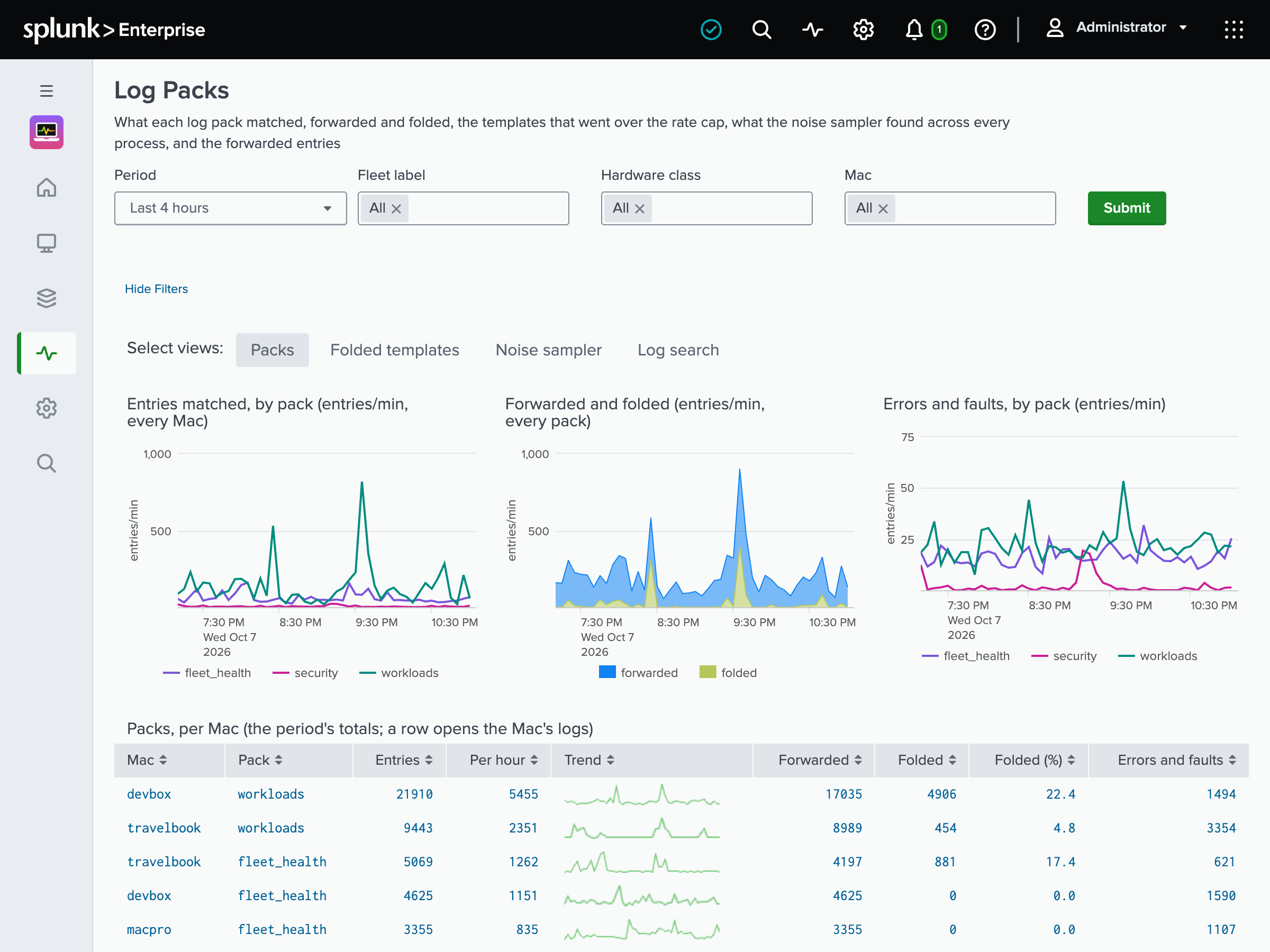
Log Packs is what the unified log sends:
- per pack, the entries matched, forwarded and folded, and the errors and faults;
- the templates folded by the rate cap;
- the noise sampler’s ranking of what logs the most across every process, with a sample message of each;
- a Log search tab over the forwarded entries.
See Log forwarding.
Setup
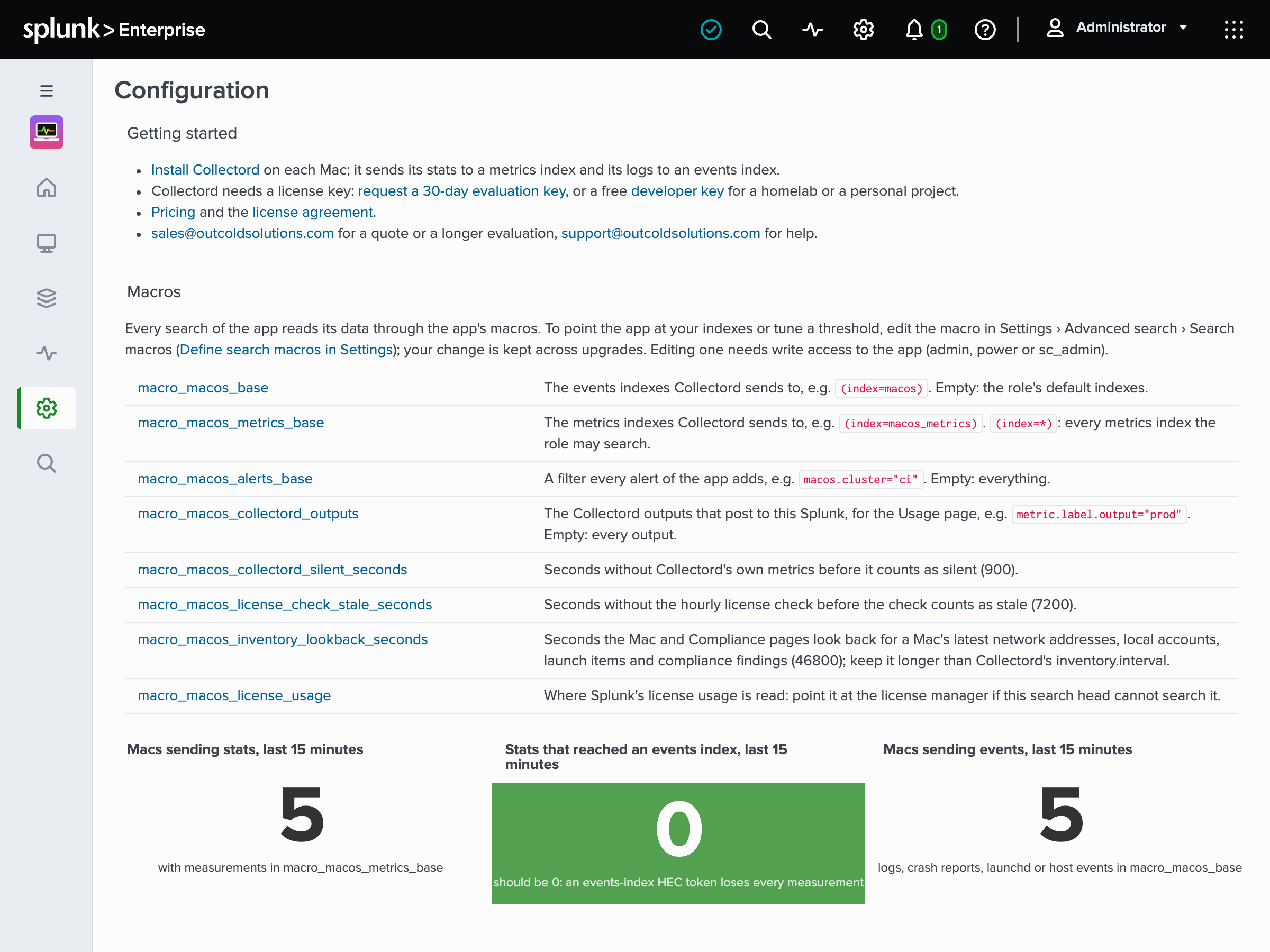
Configuration is the app’s setup page. It has links to get started, and the macros you may change for your deployment, each linked to its editor in Settings › Advanced search › Search macros:
- the events and metrics indexes;
- the filter every alert adds;
- the Collectord outputs the Usage Report counts;
- the thresholds of the Collectord usage page;
- how far the Mac and Compliance pages look back for a Mac’s inventory;
- where Splunk’s license usage is read.
Three tiles show what reached each index in the last 15 minutes.
Collectord usage shows the silent collectors, the Macs with a license check, the licensed units in use, licenses expiring soon and failing license checks. It has one row per Collectord instance, version, license and failed check, with Collectord’s own warnings and errors.
Collectord metrics is Collectord’s own health, on five tabs: Splunk Output, Files, Pipelines, Footprint and Errors.
- Splunk Output has the bytes and events posted, failed requests, request time, retries and delivery lag.
- Footprint is what Collectord costs each Mac: its CPU, memory footprint and wakeups.
- Errors has the lines Collectord tagged with an error, and data it lost.
Splunk Usage Report shows what Collectord’s data costs on your Splunk license, read from Splunk’s own license meter. It has the licensed volume per day by kind of data and by index, and what it is made of. Three of its tabs go deeper:
- Breakdown: the volume by Mac, source type, kind of data or index.
- Log patterns: the heaviest log patterns of your log files, once Collectord’s pattern report is switched on.
- Delivery: the bytes Collectord read from log files, beside what it posted and what the license counted.
Alert Catalog is where you pick and create the app’s alerts from templates: see Alert Catalog. Alerts and Dashboards are Splunk’s own lists of the alerts and dashboards in the app.