The Alert Catalog is where Monitoring macOS alerts come from. Instead of one fixed set of alerts that fires the same way for everyone, the app ships 42 templates you pick, adjust and create as saved searches you own.
Open the catalog from the app menu under Setup › Alert Catalog.
How the page works
The page first looks at your deployment with your own searches:
- which data Collectord sends: the host stats, the metrics index, Collectord’s own metrics;
- which fleet labels report;
- whether you may create alerts (the
schedule_searchcapability).
A template whose data is missing says what it needs. To hide those templates, and the ones you already created, turn on Only templates this deployment can install.
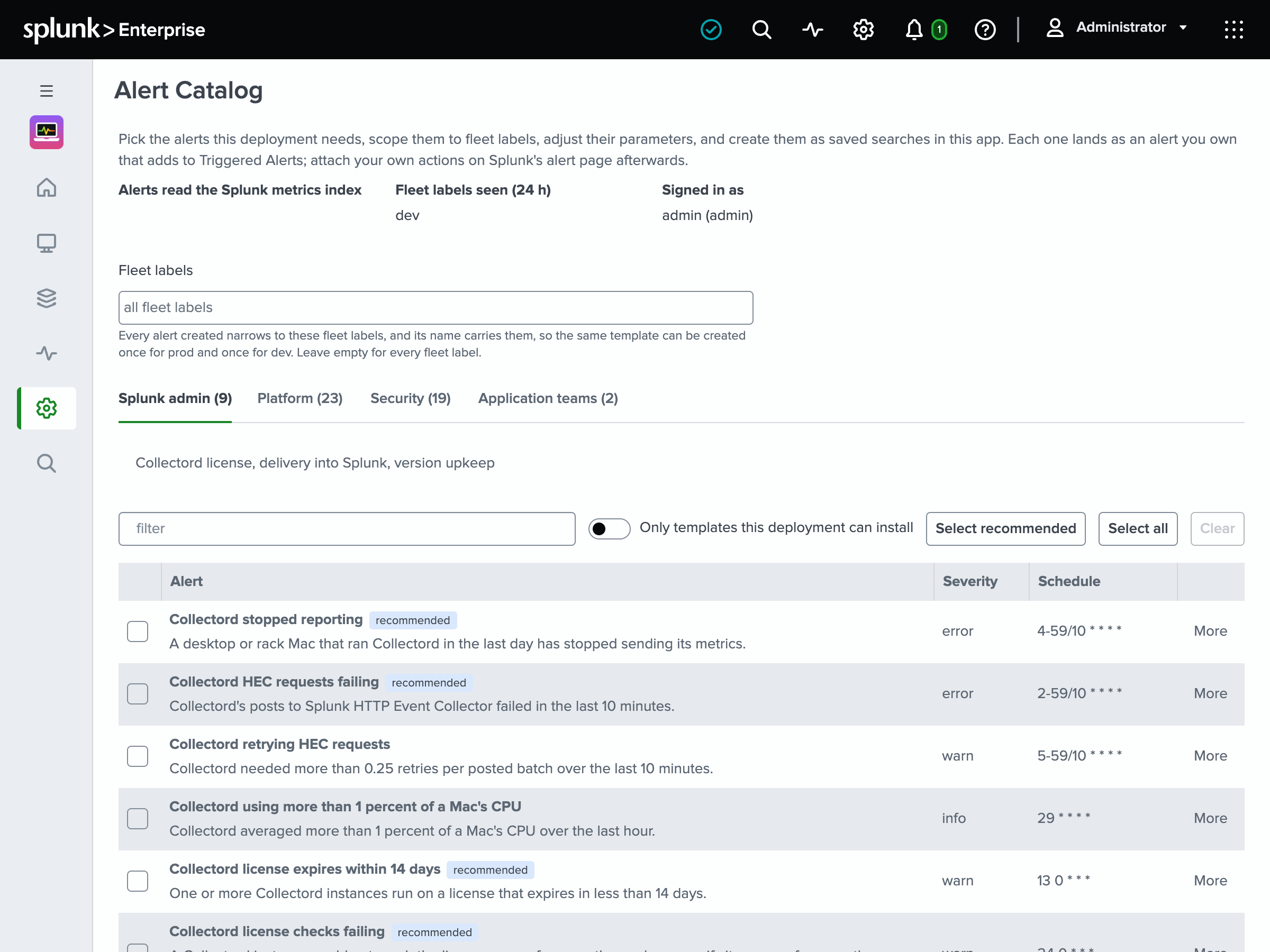
The templates are grouped on four tabs by who acts on them:
- Splunk admin: Collectord’s license, its delivery into Splunk, and its version.
- Platform: Collectord on the Macs, and the Macs themselves: CPU, memory pressure, volumes, heat, disks and network, kernel panics, virtual machines, laptops’ batteries.
- Security: FileVault, SIP, Gatekeeper, the firewall and MDM enrollment, guest and automatic login, new administrators and launch items, refused SSH logins and sudo, compliance rules and scans, pending updates.
- Application teams: virtual machines that crashed, and launchd services restarting in a loop.
A template can sit on more than one tab: the Collectord delivery templates are on Splunk admin and Platform, the update templates on Security and Platform.
To create alerts:
- Optionally, pick the Fleet labels the alerts cover, or leave it empty for every Mac. A fleet label is the
fields.macos_clustervalue, or theFleetLabelmanaged preference, of each Mac. Every alert created narrows to those labels and carries them in its name, so you can create the same template once forciand once forlaptops. - Select the templates, or Select recommended for the ones worth having everywhere.
- Under More, adjust a template’s parameters: a threshold, a number of days, the hardware classes or Macs it leaves out.
- Click Create. Each template becomes a saved search in the Monitoring macOS app, which adds to Triggered Alerts and carries no other action. Attach notifications, such as email, a webhook or your paging tool, on Splunk’s alert page, linked from the results.
An alert runs with its creator’s index access, and anyone who can open it can open its results, whatever indexes their own role may search. So each alert starts private to the user who creates it. It is then shared with the roles an admin chose under Alerts created here are visible to. The catalog page asks an admin once, and until then every alert stays private.
When you create alerts, you can pick other roles for them under Alerts created now are visible to. An installed alert’s details say who can open it. Editing and sharing need these rights:
- Besides its owner, only
adminandsc_adminmay edit a shared alert. - Sharing an alert needs write access to the app’s objects, or the
admin_all_objectscapability. - Choosing the app’s roles needs
admin_all_objects.
Every template over a stat reads the metrics index, where a Mac sends all its stats.
An installed alert carries its template id and version in its description, so the page recognizes it later. When a newer app version changes the template, the page offers an update.
To scope every alert at once, such as to leave out a lab or keep only the CI fleet, edit macro_macos_alerts_base, the filter every alert adds. It is on the Macros panel of Setup › Configuration.
Templates
Collectord and delivery
- Collectord stopped reporting (recommended): a Mac that ran Collectord in the last day has sent nothing for longer than
macro_macos_collectord_silent_seconds(15 minutes by default), the threshold the Collectord usage page uses. Laptops are left out by default, since a laptop goes quiet every time its lid closes. To watch them too, set the hardware-class parameter to^$. - Collectord HEC requests failing (recommended) and Collectord retrying HEC requests: failed posts to the HTTP Event Collector per Mac, output and status class, and more than 0.25 retries per posted batch, over the last 10 minutes.
- Collectord logged warnings or errors: anything Collectord complains about in its own log, as an opt-in digest for whoever runs it.
- Collectord using more than 1 percent of a Mac’s CPU: everything Collectord runs, averaged over an hour. Past it, a log pack usually matches far more than it should. The Collectord metrics page’s Footprint tab and the Log Packs page show which.
- Collectord license expires within 14 days (recommended), Collectord license checks failing (recommended), Collectord version outdated, Collectord license overuse (recommended).
The Macs
- Mac CPU above 90 percent: a CI or inference Mac can run busy by design: raise the threshold or scope the alert for those.
- Mac under memory pressure (recommended): the kernel’s pressure level reached warning or critical. Memory “used” near the total is normal on a Mac; pressure is the signal that it is short.
- Mac volume above 90 percent full (recommended): one alert per APFS container, naming its volumes.
- Mac thermally throttled (recommended): thermal pressure reached heavy or above, where macOS slows the CPU and GPU. A rack or closet Mac there usually has a cooling problem.
- Mac disk read or write errors (recommended), Network interface errors or drops above 1 a second, Network interface lost its link (laptops left out by default), Mac fan not spinning.
- Mac kernel panic (recommended) and Virtual machine crashed (recommended): from the panic and crash reports. A virtual machine crash is a guest’s crash, or a jetsam that killed one.
- launchd service restarted 3 or more times in 15 minutes: a service not labelled
com.applecrashing and being started again by launchd.
Laptops
- Laptop battery below 80 percent health or past 1000 cycles: a planning signal, once a week per laptop, against the thresholds the Laptops page uses.
- Laptop drawing more than its adapter gives: an adapter, cable or dock rated below the Mac.
- Laptop awake with its lid closed on battery for 10 minutes or more (recommended): a laptop in a bag, heating up and draining.
Posture and updates
- FileVault off (recommended), System Integrity Protection off (recommended), Gatekeeper off (recommended), Guest account or automatic login on (recommended).
- Application firewall off and Mac not enrolled in MDM: for a fleet that turns the firewall on, or enrolls every Mac, through MDM. The firewall is off out of the box.
- Remote Login, Screen Sharing or File Sharing on: a parameter leaves out the Macs you manage over SSH by design.
- Screen lock not enforced by a configuration profile, sudo not logging the commands it runs.
- XProtect definitions behind the fleet for more than 14 days (recommended): a Mac that misses its background security updates, compared with the other Macs on its macOS release.
- Software update pending for more than 14 days (recommended) and Software update checks failing or older than 7 days (recommended).
Accounts, persistence and logins
- Local administrator added (recommended): an account created as an administrator, or given administrator rights.
- Launch item added (recommended) and Login or background item added (recommended): a launch daemon or agent added or its program changed, a login item, or an agent or daemon an app registers from its own bundle. These are where software and malware make themselves start again.
- SSH logins refused 10 times from one source (recommended) and sudo refused 3 times for one account (recommended): from the
securitylog pack.
Compliance
For an organization that runs the macOS Security Compliance Project’s compliance script:
- Compliance rule started failing (recommended): a rule that passed at a Mac’s previous scan fails now, with no exemption.
- Compliance scan older than 7 days (recommended).
The numbers in the template names are their default parameters. You change them under More before you create the alert.