Monitoring Linux lays out what Collectord sends from each host under three menus: Overview, Infrastructure and Setup. This tour shows what each dashboard holds, so you know where to look.
Collectord sends host, process, filesystem, block device and network stats, the socket table, the host logs and its own metrics. Every dashboard has a Period picker, and most have Cluster and Host pickers. The cluster is the fields.linux_cluster value each host sets in its 002-user.conf, so one app can keep several fleets apart.
The stats dashboards come in two sets that look the same: one reads the events index and one reads a metrics index. The Configuration page chooses which set the menu shows (see Choose the dashboards).
Overview
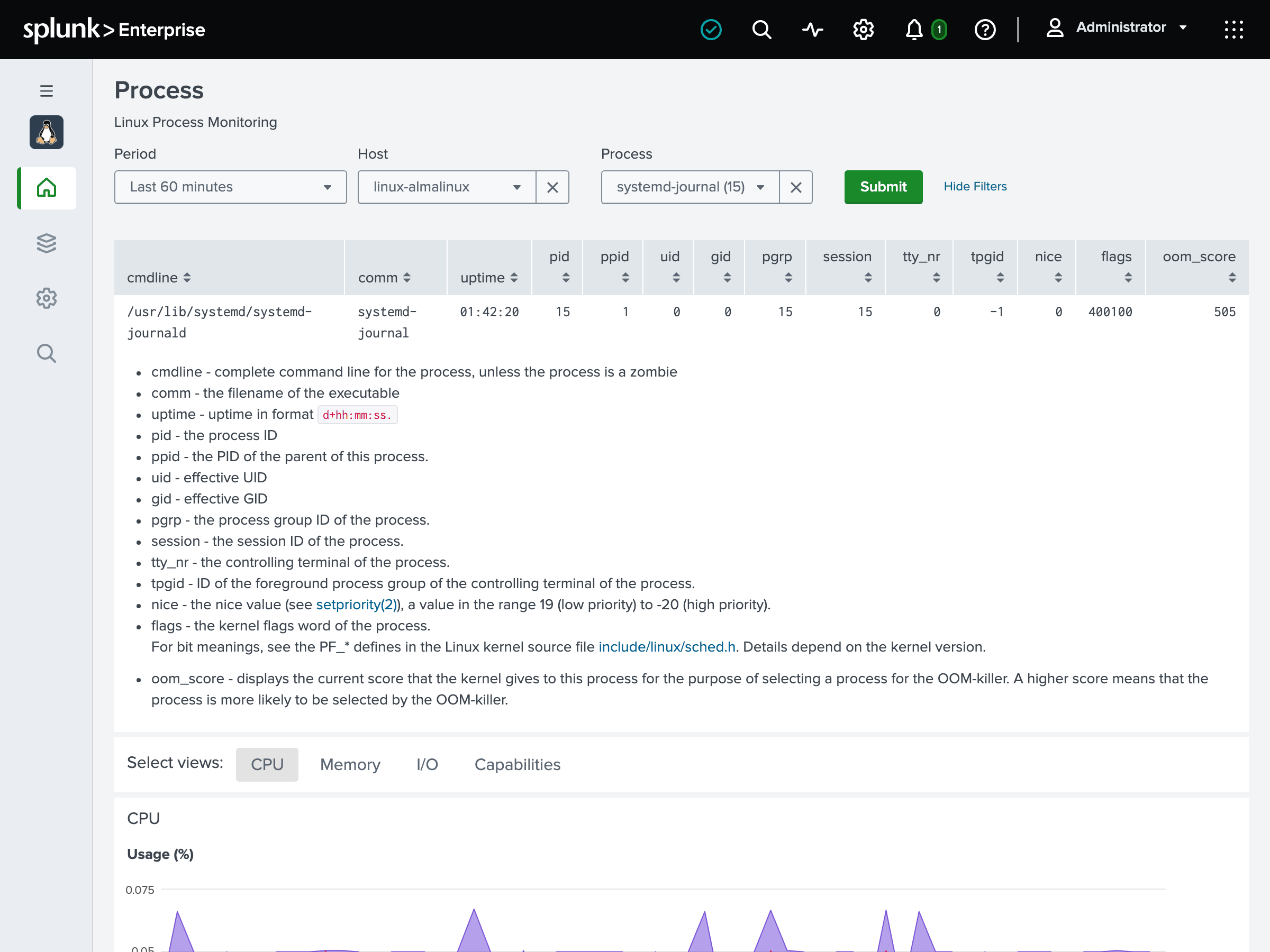
Hosts is the landing page. It shows the alerts the app triggered that have not expired yet, and the fleet’s total CPU cores and memory.
One row per host gives its uptime, CPU and memory use, 1-minute load and load per core. The row also shows its stall (the worst of the CPU, memory and I/O pressure), whether its clock is synchronized, and its distribution and kernel.
Under the table, tabs chart each host:
- Compute: CPU, memory, and CPU and memory stall.
- I/O: reads, writes, I/O wait and I/O stall.
- Network: traffic, errors, drops and TCP retransmits.
- Logs: the host logs.
Click a host to open it on the Host dashboard.
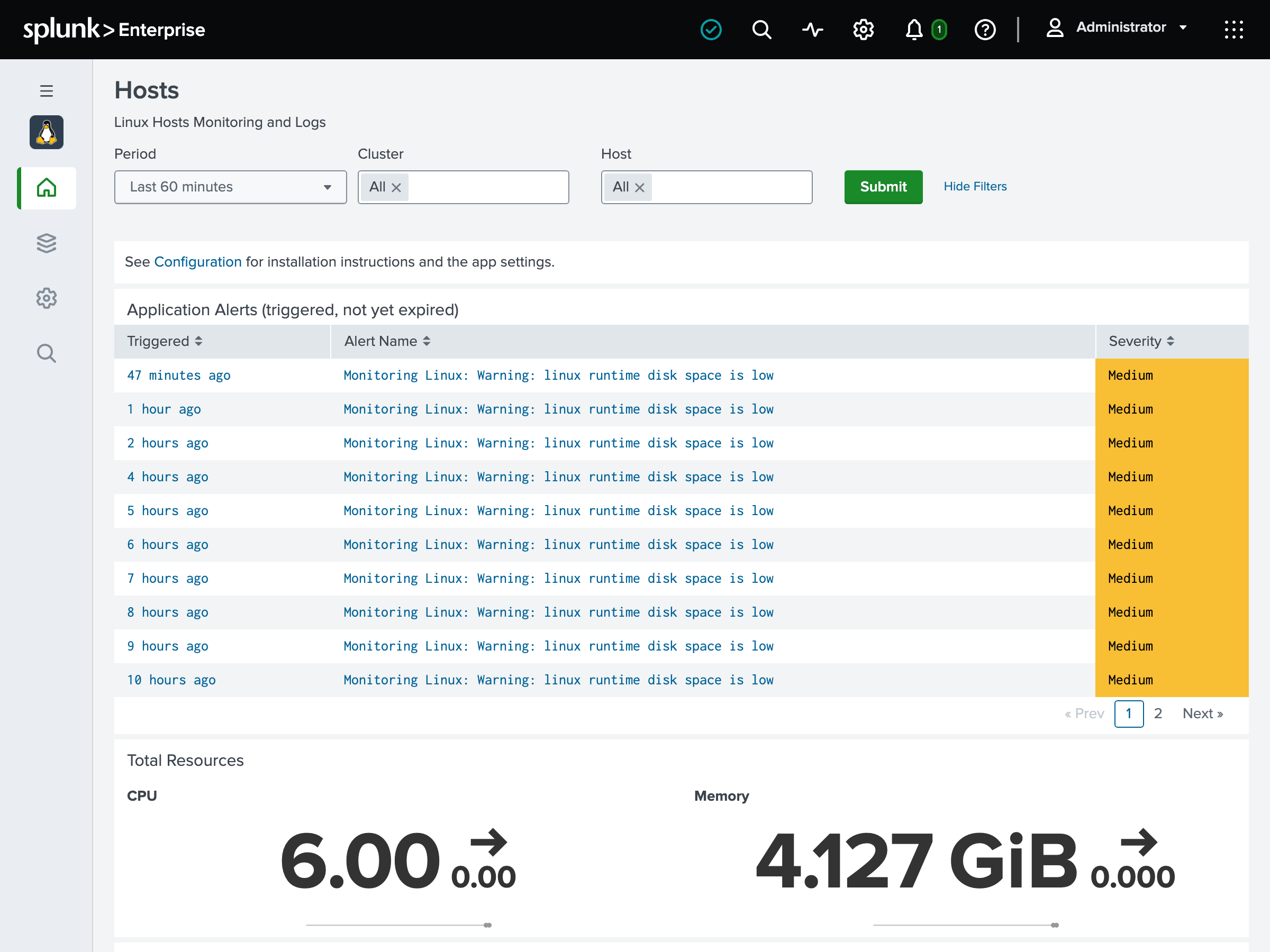
Host is one host in depth: CPU, memory, swap and its fullest filesystem against what the host has, then tabs:
- Compute has CPU time by type (user, system, I/O wait, steal) in cores, the load average against the cores, and the runnable and I/O-blocked tasks. It also has pressure: the share of the time tasks stalled waiting for CPU, memory or I/O.
- Memory has memory by usage and as the kernel counts it (available, buffers, cache, dirty), swap and the paging rates (swap in and out, major faults).
- Network has the interfaces, the socket table, TCP retransmits, resets and refused connections, the established connections and UDP errors.
- Kernel has the connection tracking table against its limit, the open file handles, and the clock: synchronized or not, with the kernel’s bound on its error.
- Processes lists the processes running on it, with their open files against their limit.
- Logs has the kernel events of the period (OOM kills, filesystem errors, blocked tasks, hardware errors) and the host logs.
Pressure, the TCP and UDP figures, the conntrack table, open files and the clock need Collectord 26.10.1. Pressure also needs a kernel with PSI on, which RHEL 9 and 10 kernels (and AlmaLinux and Rocky Linux) keep off unless booted with
psi=1.
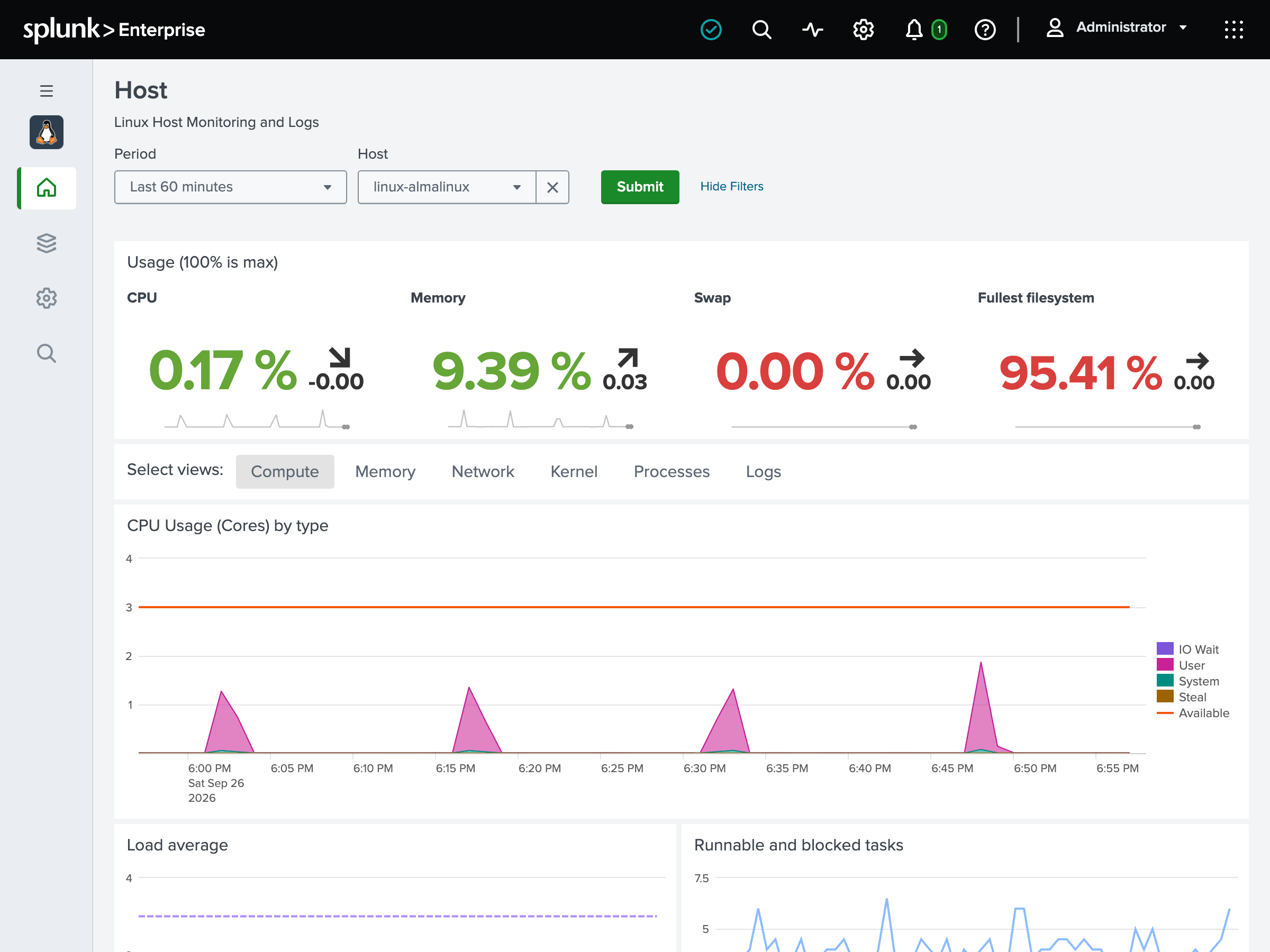
26.10Inventory is what each host is: its distribution, kernel, architecture, CPU model, cores, memory, hypervisor, uptime and the Collectord it runs. It also shows the fleet’s spread by distribution, kernel and hypervisor, and the package updates each host has pending, security updates first. Pick a distribution or a kernel to see which hosts run it.
Collectord 26.10.1 and later send the distribution, architecture, CPU and hypervisor. A host on an earlier version shows “-” there.
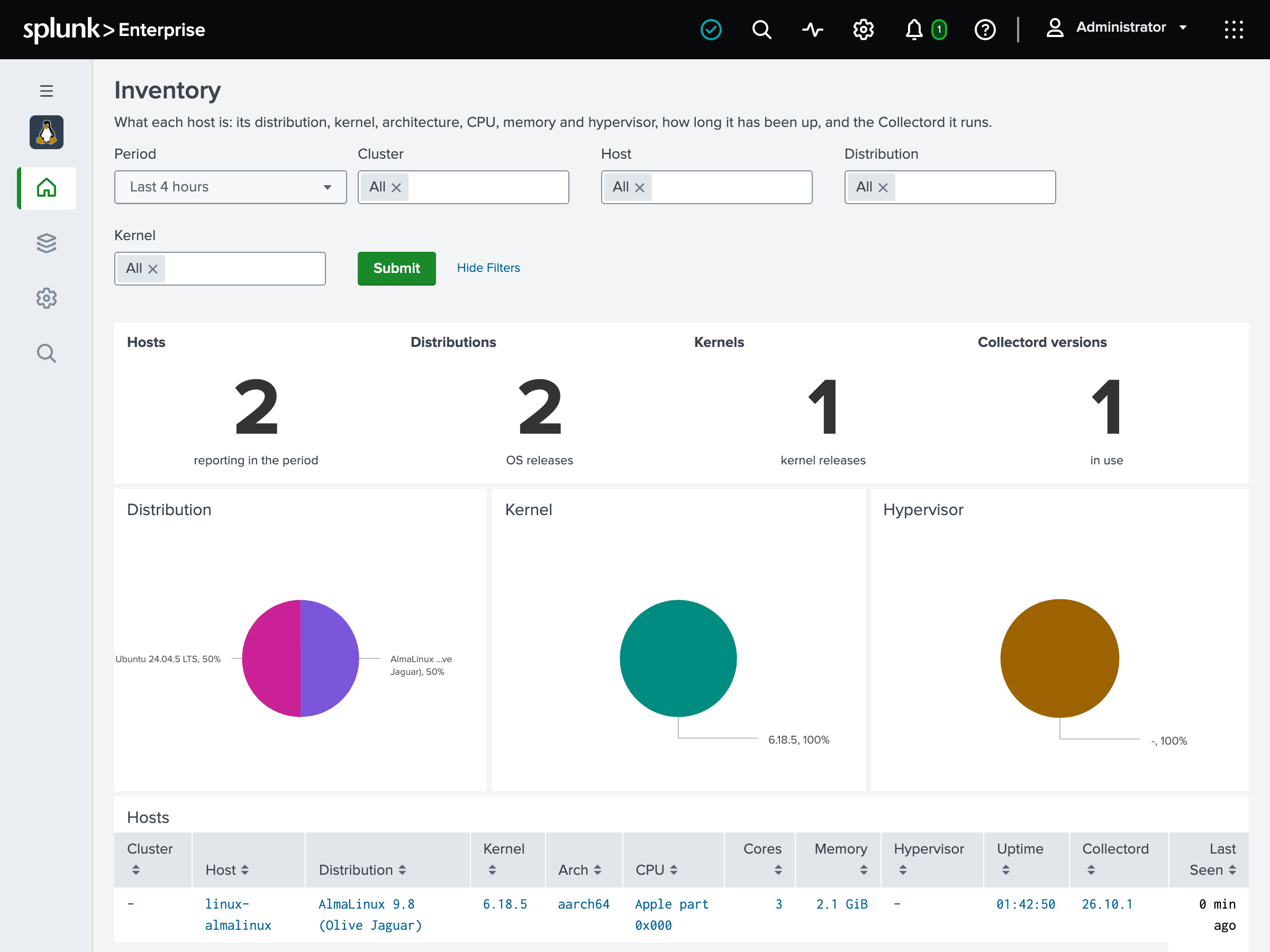
Process is one process on one host: its command line, owner and scheduling state, then tabs with:
- its CPU time (user, system, guest, waiting for children), threads and context switches;
- memory (virtual size, resident set, swap, page faults);
- I/O, system calls and the files it holds open against its limit;
- its capabilities.
Pick the host first, then the process.
Top: Hosts and Top: Processes are one table each, busiest first:
- hosts by CPU and memory, with I/O wait and steal beside them;
- processes by CPU and memory, with swap, I/O, threads and the OOM score.
Infrastructure
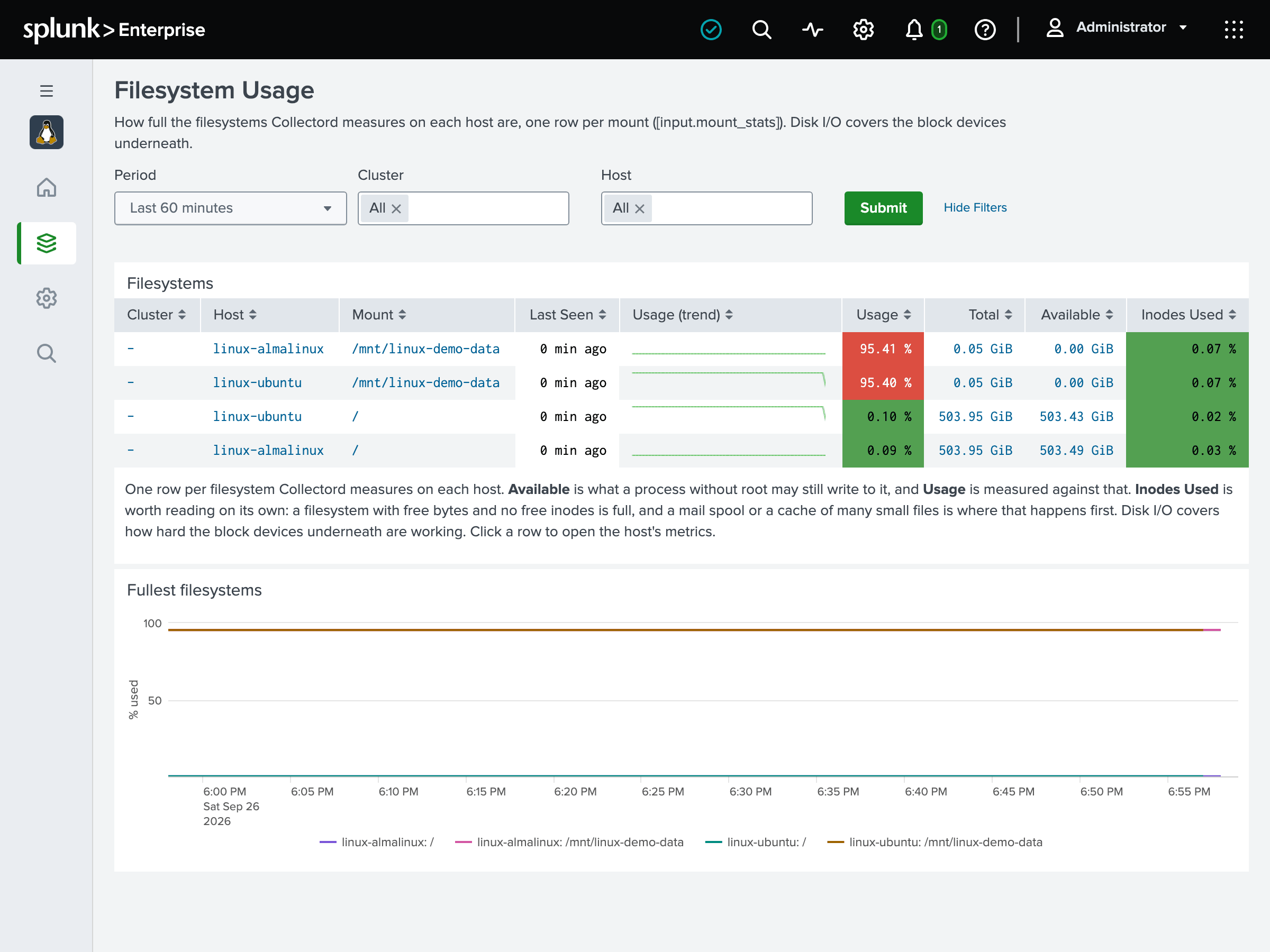
Network is what the hosts’ interfaces move, whom the hosts talk to and which ports they listen on. Six figures head it: the traffic received and sent, the interfaces’ errors and drops, the connections established and the sockets listening now, and the remote hosts outside the private ranges. Below them:
- Interfaces has one row per interface on each host with its link state, speed, traffic, throughput and how much of the link it uses, packets, errors, drops, link changes and MTU. Charts show the traffic and the errors and drops per host.
- Connections charts the connections by TCP state and lists the busiest remote endpoints. It shows the outside connections on a table and a map located by the remote address, and the local ones.
- Listening lists every open port, on how many hosts, which processes listen on it and on which addresses. It also lists each listening socket with its process.
Collectord 26.10.1 sends the link state and names the listening processes.
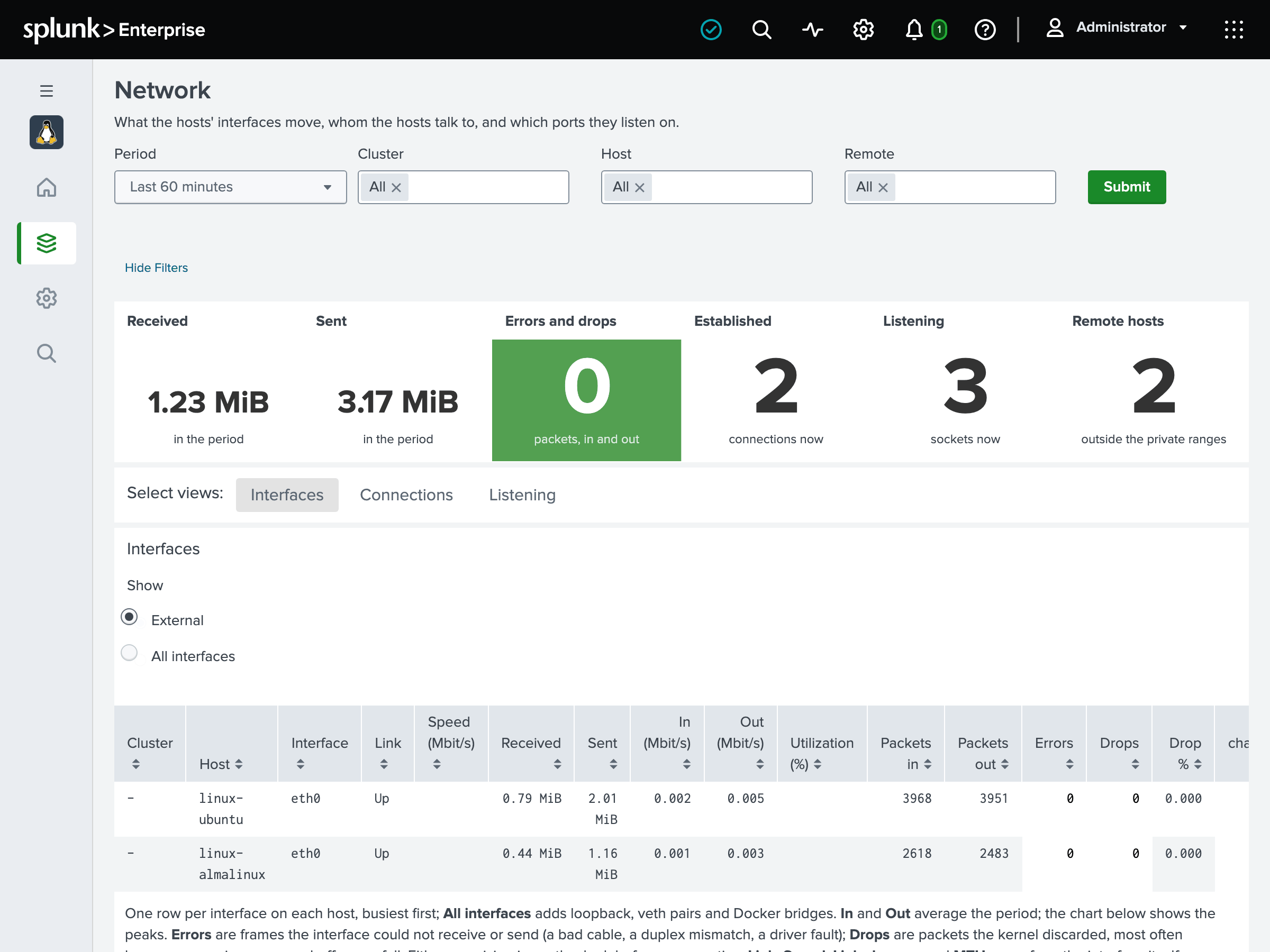
Filesystem Usage has one row per host and mount: how full it is, with a trend, and how many inodes are used. Below it is the usage over the period of the ten fullest filesystems.
Available is what a process without root may still write, and usage is measured against it. A filesystem with free bytes and no free inodes is full too. Collectord measures every real filesystem of the host ([input.mount_stats] mounts = auto), a volume mounted later included.
26.10Disk I/O shows what the block devices underneath are doing: requests and bytes per second, the average wait per request and utilization, as averages over the period or as raw totals.
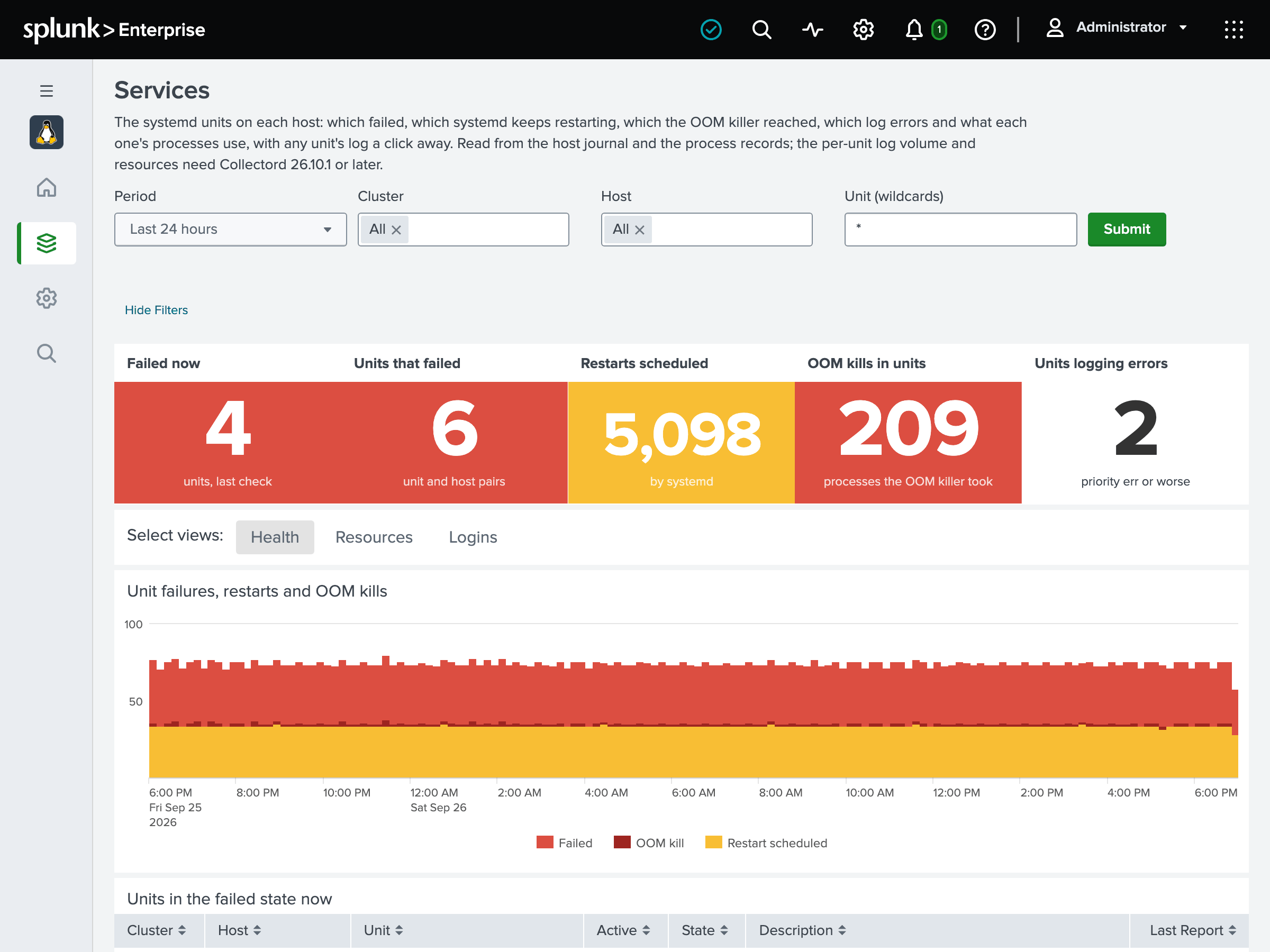
Available since Collectord version26.10Services is the systemd units on each host. Counts head it: units failed now, units that failed in the period, restarts, OOM kills and units logging errors. Under them are three tabs:
- Health has the units in the failed state at each host’s newest check, and what systemd said about each unit: failures with the result and exit status, restarts and how high the restart counter is, OOM kills. It also shows which units log the most errors and warnings.
- Resources has the CPU, memory, processes and open files of each unit’s processes, averaged and at their peak, with charts of the busiest units.
- Logins has the logins sshd accepted, the failed ones by source with the users tried, and the sessions systemd-logind opened.
Click a unit in any table to read its log below: its own journal lines and what systemd said about it.
The failures and restarts come from systemd’s own messages. The units failed now, the log volume per unit and the resources need Collectord 26.10.1. It lists the failed units every minute and names the unit of every journal entry and every process: see Log forwarding.
Setup
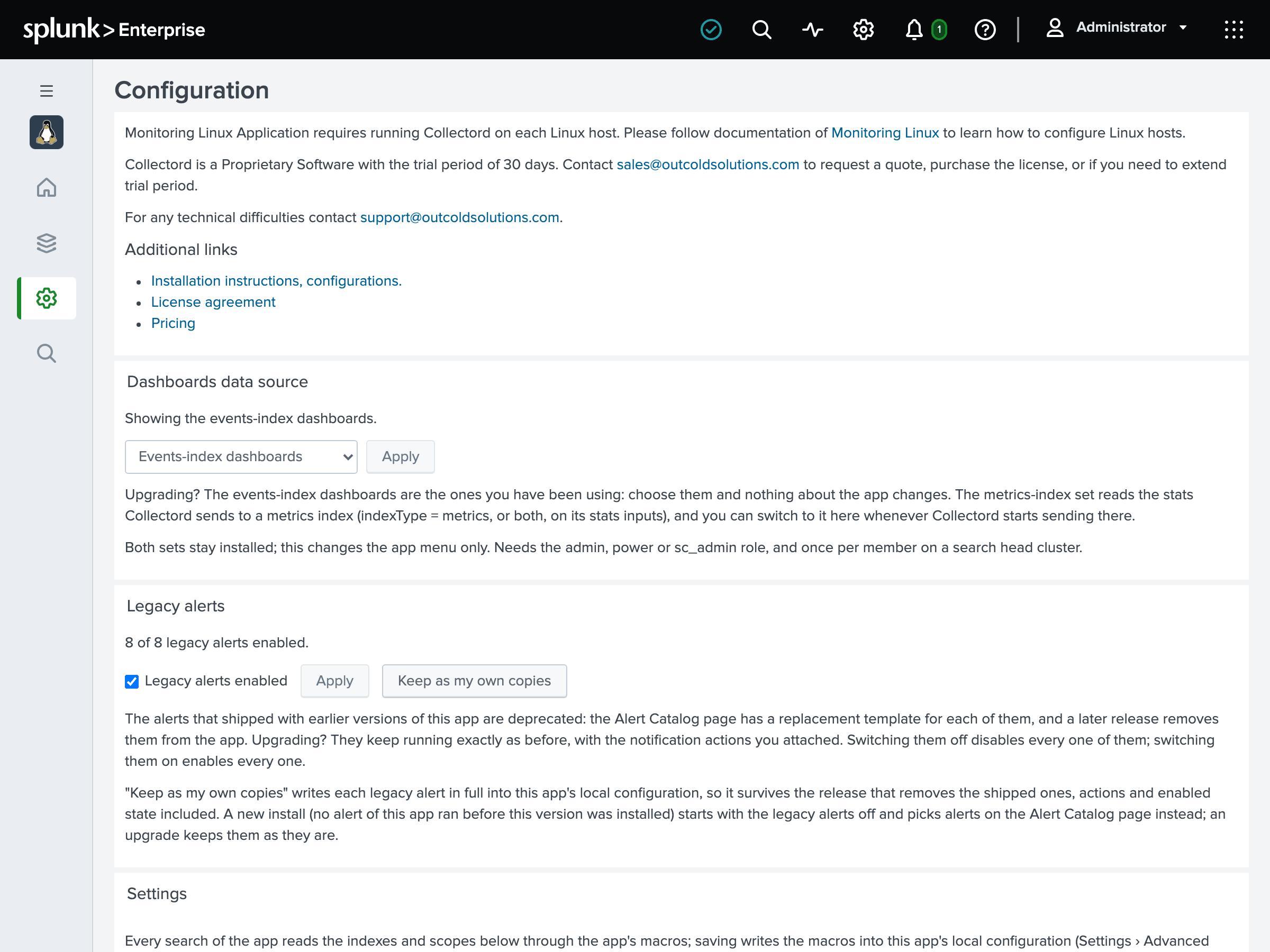
Available since Collectord version26.10Configuration is the app’s setup page. It holds:
- which dashboard set the menu shows;
- the switch for the alerts earlier versions shipped;
- the macros you may change for your deployment: the indexes, the scope every alert adds, the Usage Report’s filters and the thresholds of the Collectord usage page. Each links to its editor in Settings › Advanced search › Search macros.
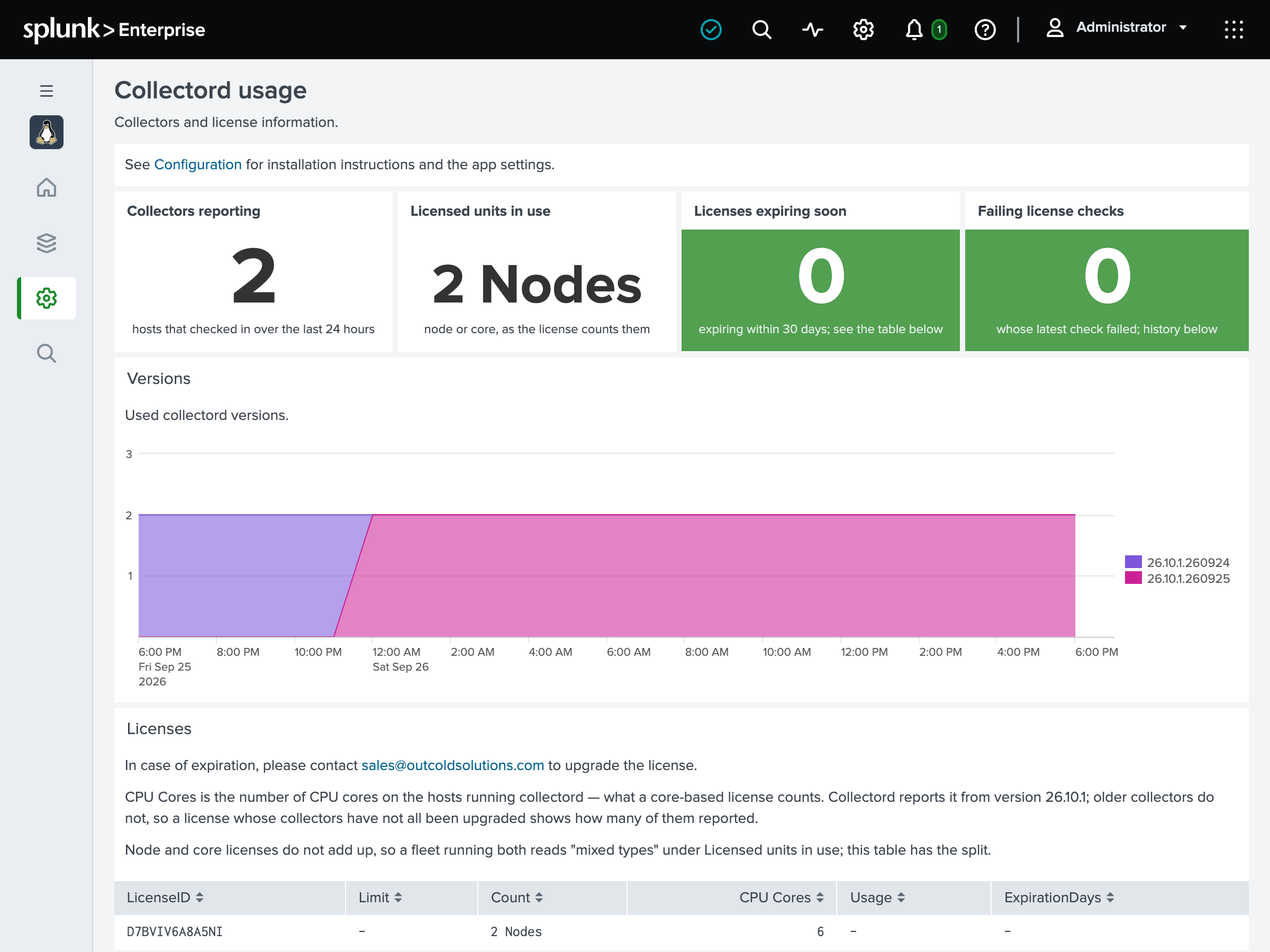
Collectord usage shows how many hosts run Collectord, the licensed units in use, licenses expiring within 30 days and failing license checks. It also shows the Collectord versions over time, and one row per license, per collector and per failed check.
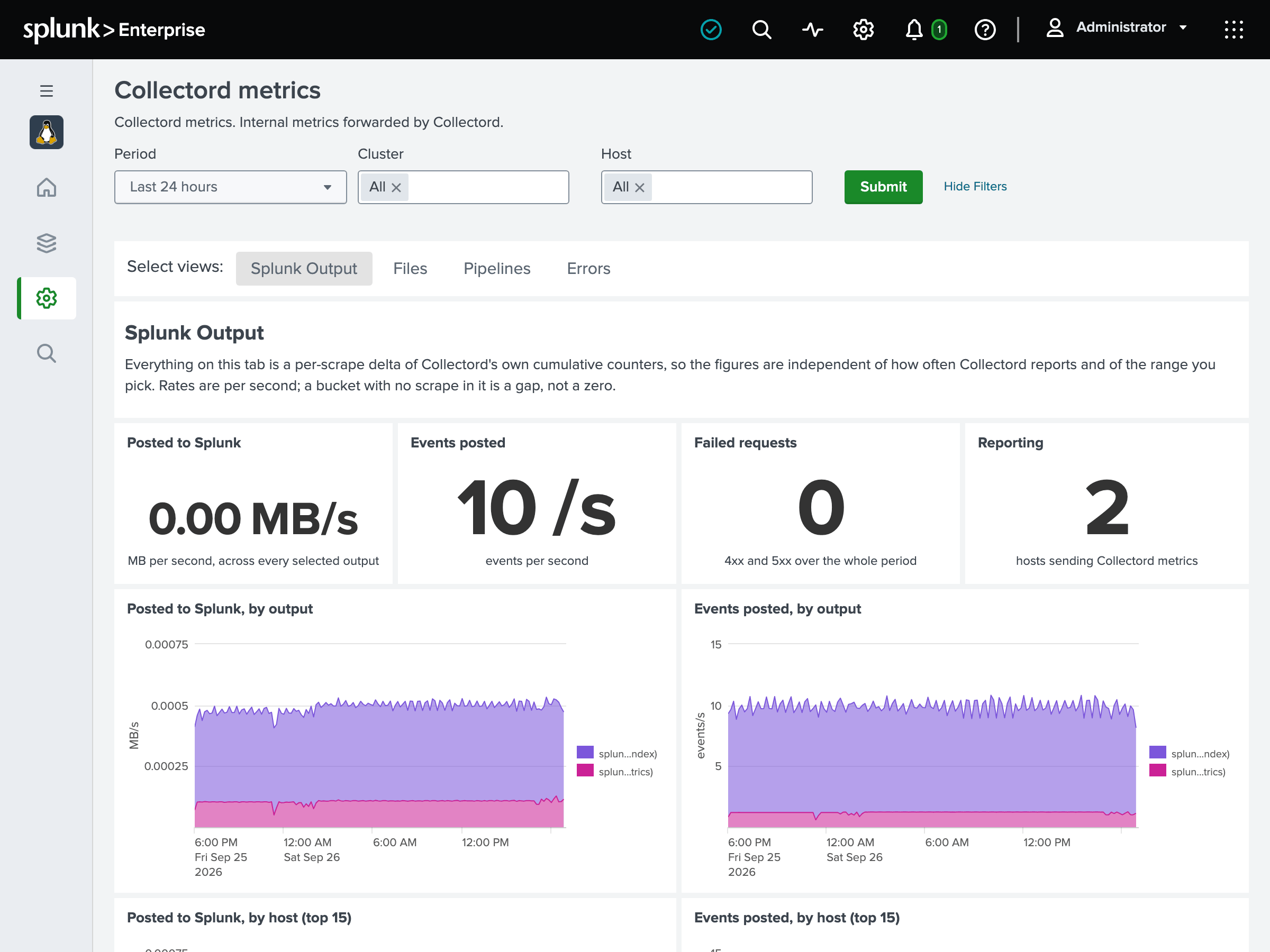
Collectord metrics is Collectord’s own health, on four tabs:
- Splunk Output: bytes and events posted, failed requests, request time, retries and delivery lag.
- Files: open files and bytes read.
- Pipelines.
- Errors: events Collectord tagged with an error, the warnings it reports, and data it lost.
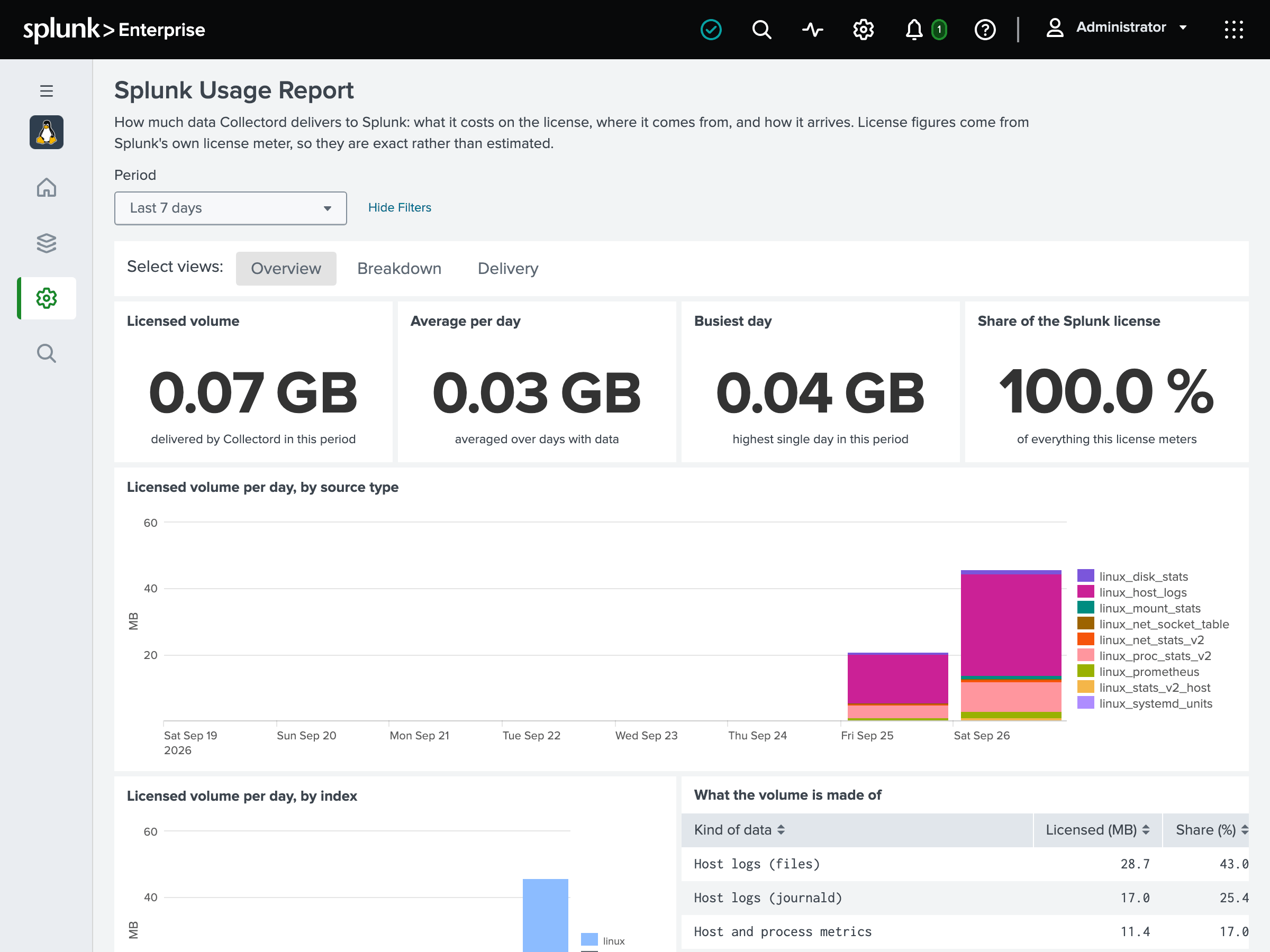
Splunk Usage Report shows what Collectord’s data costs on your Splunk license, read from Splunk’s own license meter. It opens on Overview: the licensed volume per day by source type and by index, and what it is made of. Its other tabs:
- Breakdown: the volume by host, source, source type or index.
- Log patterns: the heaviest log patterns and who wrote them, once Collectord’s pattern report is switched on.
- Delivery: the bytes Collectord read from log files beside what it posted and what the license counted.
Alert Catalog is where you pick and create the app’s alerts from templates: see Alert Catalog. Alerts and Dashboards are Splunk’s own lists of the alerts and dashboards in the app.
The metrics-index set
With the metrics-index dashboards chosen, the menu shows their twins. Hosts, Host, Inventory, Process, Top: Hosts, Top: Processes, Filesystem Usage, Disk I/O, Network, Services, Collectord usage, Collectord metrics and the Splunk Usage Report read the metrics index with mstats. They look the same as the events-index pages.
The Inventory twin counts the Collectord versions but lists no version per host: those come from the license checks in the host logs.
On Network only the interface figures come from the metrics index, and on Services only the Resources tab. The socket table, the failed units and the host logs are in the events index in both sets, the only one that carries them.