26.10The Alert Catalog is where Monitoring Linux alerts come from. You pick from 45 templates, adjust them, and create them as saved searches you own, instead of one fixed set of alerts that fires the same way for everyone.
Open the catalog from the app menu under Setup › Alert Catalog.
How the page works
The page first looks at your deployment with your own searches:
- which data Collectord sends: host stats, process stats, filesystems, network, host logs, and Collectord’s own metrics;
- whether your stats go to the events index or the metrics index;
- which clusters report;
- whether you may create alerts (the
schedule_searchcapability).
A template whose data is missing says what it needs. To hide those templates, and the ones you already created, turn on Only templates this deployment can install.
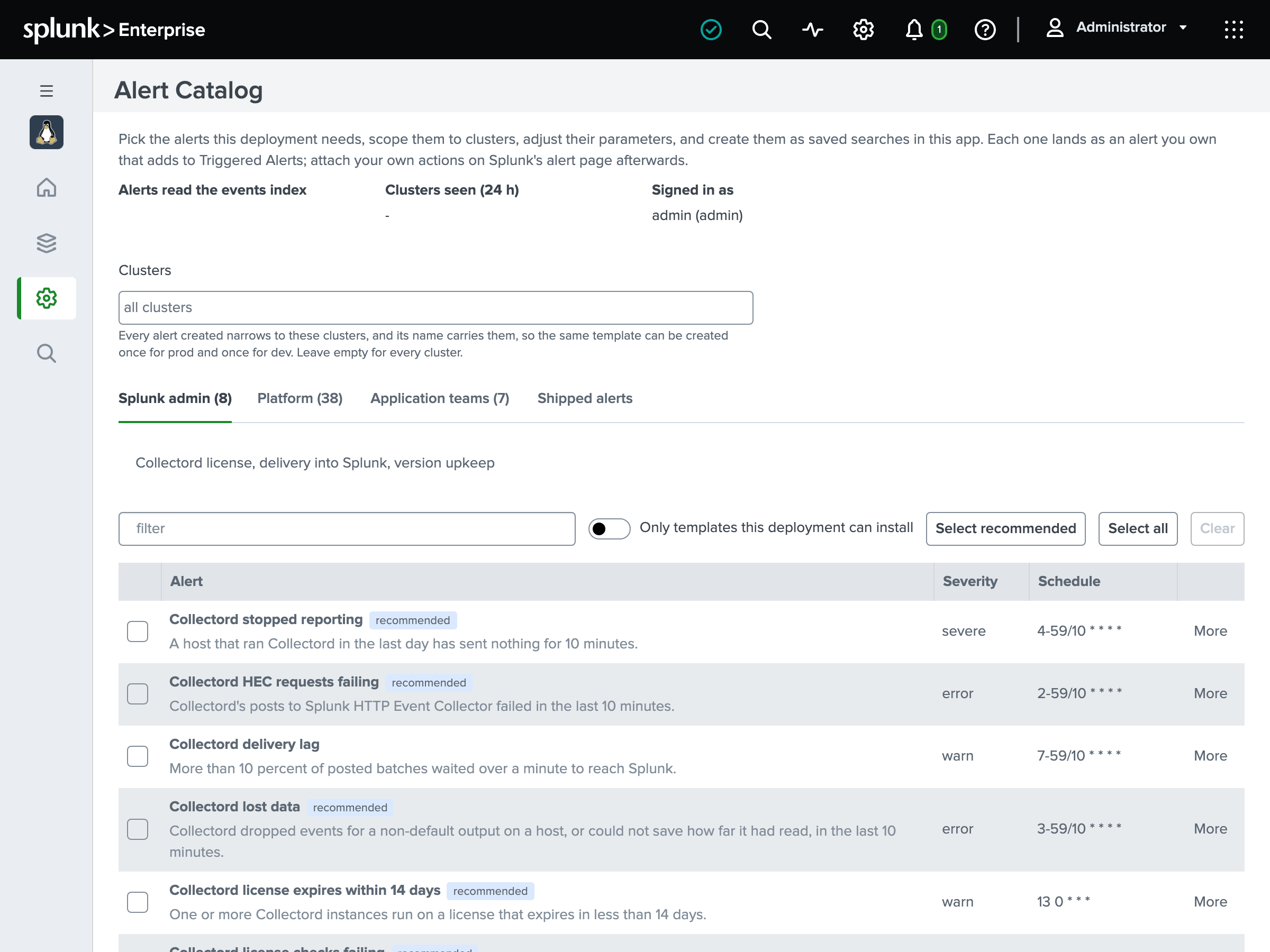
The templates are grouped on four tabs by who acts on them:
- Splunk admin: Collectord’s license, its delivery into Splunk, and its own warnings.
- Platform: Collectord on the hosts, the hosts themselves, their filesystems and network interfaces, and the kernel’s messages.
- Security: the updates a host has pending, and package metadata it no longer refreshes.
- Application teams: processes that must run, and processes using too much CPU or memory or close to their open-file limit.
To create alerts:
- Optionally, pick the Clusters the alerts cover, or leave it empty for every cluster. Each alert you create narrows to those clusters and carries them in its name, so you can create the same template once for
prodand once forstaging. A cluster is thefields.linux_clustervalue in each host’s002-user.conf. - Select the templates, or Select recommended for the ones worth having everywhere.
- Under More, adjust a template’s parameters: a threshold, a process name pattern.
- Click Create. Each template becomes a saved search in the Monitoring Linux app, which adds to Triggered Alerts and carries no other action. Attach notifications, such as email, a webhook or your paging tool, on Splunk’s alert page, linked from the results.
An alert runs with its creator’s index access, and anyone who can open it can open its results, whatever indexes their own role may search. So each alert starts private to the user who creates it. The page then shares it with the roles an admin chose under Alert Catalog: who sees the alerts on Setup › Configuration: none until an admin chooses.
When you create alerts, you can pick other roles for them under Alerts created now are visible to. An installed alert’s details say who can open it. Editing and sharing need these rights:
- Besides its owner, only
adminandsc_adminmay edit a shared alert. - Sharing an alert needs write access to the app’s objects, or the
admin_all_objectscapability. - Choosing the app’s roles needs
admin_all_objects.
Every template reads the index your stats go to. A template that reads stats has two bodies, one for the events index and one for the metrics index. The page installs the one that matches the dashboards chosen on the Configuration page.
An installed alert carries its template id and version in its description, so the page recognizes it later. When a newer app version changes the template, the page offers an update.
Templates
Splunk admin
- Collectord stopped reporting (recommended): a host that ran Collectord in the last day has sent nothing for longer than
macro_linux_collectord_silent_seconds, the threshold the Collectord usage page uses. It is 15 minutes by default, linked from the Configuration page’s Macros panel. The alert fires once an hour per host while the silence lasts, for up to a day. - Collectord HEC requests failing (recommended): Collectord’s posts to the HTTP Event Collector failed in the last 10 minutes, per host, output and status class.
- Collectord retrying HEC requests: Collectord needed more than 0.25 retries per posted batch over the last 10 minutes.
- Collectord delivery lag: more than a share of posted batches waited over a minute to reach Splunk.
- Collectord license expires within 14 days (recommended), Collectord license checks failing (recommended), Collectord version outdated and Collectord license overuse (recommended).
Platform
- Collectord had to rewrite or truncate events, Collectord’s extraction pattern is not matching, Collectord logged warnings or errors and Collectord host diagnostics alarm read what Collectord reports: its error tags on the host logs, its own warnings, and the host checks it runs (reboot required, low entropy, CPU vulnerabilities).
- Host CPU above 90 percent, Host memory above 85 percent, Host I/O wait above 30 percent, Host CPU steal above 10 percent and Host swap above 50 percent used: their thresholds are parameters.
- Host load above 2 per core, Host memory available below 10 percent and Host swapping in over 1 MiB per second read the load, memory and paging columns Collectord 26.10.1 sends:
- the 5-minute load staying above a multiple of the cores;
- the kernel’s own estimate of the memory programs can still get;
- swap being read back, which is when swap in use starts to hurt.
- Host memory stalled over 10 percent of the time and Host I/O stalled over 20 percent of the time: the share of the time every task with work waited for memory or I/O (full pressure stall information). That is time the host did nothing useful, and it shows before the usage looks alarming. They need a kernel with PSI on: 4.20 and later. RHEL 9 and 10 and the distributions built from them (AlmaLinux, Rocky Linux) keep it off by default, so boot their kernels with
psi=1. - Host clock not synchronized: no NTP or PTP daemon kept the host’s clock for 15 minutes, with the kernel’s bound on its error.
- Host connection tracking table over 90 percent full: the table NAT and stateful firewall rules keep. Once it is full, the kernel drops every new connection.
- TCP connections turned away by a full accept queue: a service that does not accept its connections fast enough, averaged over 10 minutes.
- Host retransmitting over 5 percent of its TCP segments: packet loss or congestion on the paths the host talks over, while it sends at least 10 segments a second.
- UDP datagrams dropped on full socket buffers: a DNS, syslog or metrics server that cannot keep up. This and the five above read the kernel columns Collectord 26.10.1 sends.
- Filesystem below 20 percent free (recommended) and Filesystem below 10 percent free inodes: one row per host and mount.
- Host stopped sending stats: Collectord is running, but its host stats do not reach Splunk.
- Host rebooted: a host booted in the last 15 minutes.
- Network interface errors or drops: receive and transmit errors and drops per interface, leaving out loopback, veth pairs and Docker bridges.
- Kernel OOM killer ran (recommended), Filesystem errors in the kernel log, Tasks blocked in the kernel and Hardware errors in the kernel log read the host logs. A message that arrives both through the journal and from a syslog file counts once.
- A systemd unit failed (recommended) and A systemd unit restarted 3 times (recommended) read what systemd itself logs about a unit. It ended failed (with the result and exit status), or it keeps being restarted. A regular expression on the unit name narrows them, for example
^(nginx|postgresql)\.service$. The Services dashboard shows the same units with their logs. - A systemd unit is in the failed state: a unit systemd holds failed at the host’s newest check, however long ago it failed. It reads the failed-units report Collectord 26.10.1 sends every minute (
[input.systemd_units]). It keeps firing, every six hours, until the unit starts again orsystemctl reset-failedclears it.
Security
- Security updates pending for more than 14 days: a host has reported security updates pending in every report for that long. It reads the pending-updates report Collectord 26.10.1 sends every hour.
- Package metadata older than 7 days: the newest package metadata a host’s cache holds is older than that, or the cache was never filled. So updates published since are not reported.
Application teams
- Expected process missing: a process that ran on a host in the last day has not run there for 15 minutes. Set the name pattern to the daemons that must always run, for example
^(sshd|crond|nginx)$. - Process CPU above 90 percent of a core and Process memory above 2048 MB: narrow them with a pattern on the process name.
- Process using over 80 percent of its open-file limit: the file descriptors a process holds against its soft limit (
ulimit -n, a service’sLimitNOFILE=). At the limit, its next open or accept fails. It needs Collectord 26.10.1 or later.
Some templates appear on a second tab as well:
- the Kernel OOM killer and the systemd unit failed and restart templates on the Application teams tab;
- the open-file limit template on the Platform tab;
- the two Security templates on the Platform tab.
Shipped alerts
Earlier versions of Monitoring Linux shipped eight predefined alerts. They stay in this release, enabled and marked deprecated in their description, and a later release removes them. Each has a replacement template:
| Shipped alert | Template |
|---|---|
| Monitoring Linux: Collector License Expiration (less than 14 days) | Collectord license expires within 14 days |
| Monitoring Linux: Collector Failed License Checks | Collectord license checks failing |
| Monitoring Linux: Collector outdated | Collectord version outdated |
| Monitoring Linux: Collector license overuse | Collectord license overuse |
| Monitoring Linux: Warning: linux runtime disk space is low | Filesystem below 20 percent free |
| Monitoring Linux: Warning: high host memory usage | Host memory above 85 percent |
| Monitoring Linux: Cluster Warning: high host CPU usage | Host CPU above 90 percent |
| Monitoring Linux: Warning: collectord has WARN or ERROR logs | Collectord logged warnings or errors |
An upgrade keeps them: the shipped alerts keep running with the actions you attached, as long as the Configuration page recognizes the upgrade, its Legacy alerts section reading “Upgrading” (see Choose the dashboards). The Shipped alerts tab on the catalog page lists the ones you customized beside their replacement templates.
The Configuration page’s Legacy alerts section switches them all on or off. With Keep as my own copies, it writes each one in full into the app’s local configuration, actions and enabled state included, so it survives the release that removes them.
A new install finishes its setup with the legacy alerts off and picks alerts on the catalog page.