This guide walks through Monitoring Kubernetes menu by menu: what each page is for. The pages lead you to what needs fixing: the Overview says whether anything is wrong and where, and its tiles and rows drill down to the page that shows the cause.
The app shows what Collectord sends from your clusters: container logs and stats, the nodes’ stats and logs, events and the Pod and Node objects. It also shows the API server audit log, the control plane’s metrics and Collectord’s own metrics.
The app lays them out under the Overview and Logs pages and the Monitoring, Events, Cluster, Security, Audit and Setup menus. Every dashboard has a Period picker, and most have a Cluster picker: the cluster is the fields.kubernetes_cluster value each Collectord sets (see Multiple clusters).
The stats dashboards come in two sets that look the same: one reads the events index and one reads a metrics index. You choose which set the menu shows on the Configuration page (see Choose the metrics-index dashboards).
Version 26.10 reorganized the menus. A bookmark of a page it removed, such as the old Workloads menu’s page per workload kind, opens the Overview.
Overview
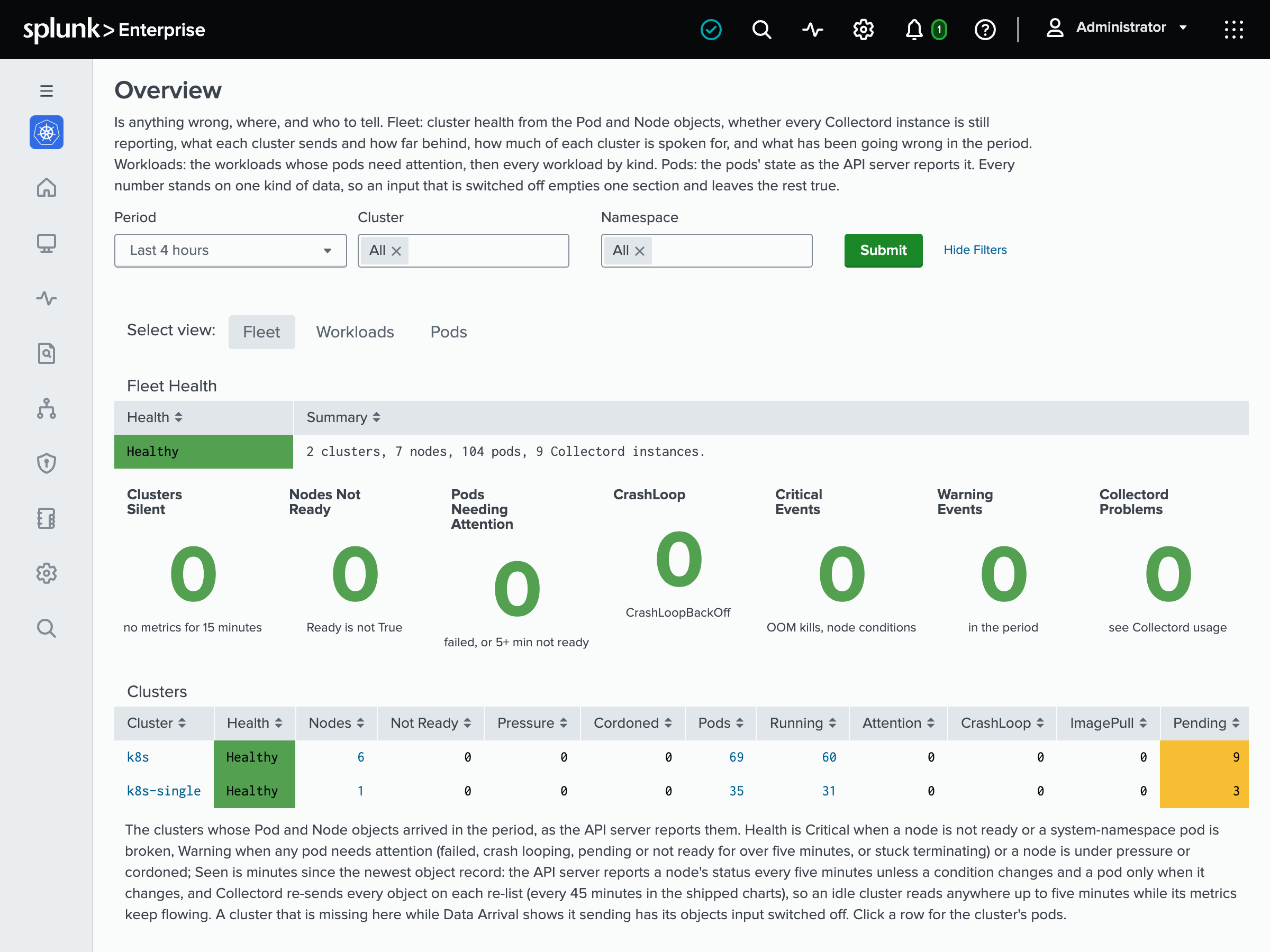
Overview is the page the app opens on. It tells you whether anything is wrong, where, and who to tell.
The Fleet tab opens with one verdict for all your clusters: Healthy, Warning, Critical, or Unknown when the data to decide is missing. The numbers behind it follow: clusters gone silent, nodes not ready, pods needing attention, crash loops, critical and warning events, and Collectord problems. Below them, the tab shows:
- one row per cluster with its nodes and pods;
- what each cluster sent and how far behind Collectord delivers;
- how much of each cluster is spoken for;
- the period’s warning events;
- the namespaces with the most pods needing attention.
The other two tabs look at workloads and pods:
- Workloads lists the workloads whose pods need attention, then every workload by kind.
- Pods has the pods’ current state on Triage, Restarts, Scheduling and Warnings tabs.
Three macros hold the Overview’s thresholds, and you can change them:
macro_kubernetes_collectord_silent_seconds: 15 minutes without Collectord’s own metrics.macro_kubernetes_license_check_stale_seconds: two missed hourly license checks.macro_kubernetes_system_namespaces: the namespaces whose broken pods make a cluster Critical rather than Warning.
The silent-cluster tile needs Collectord 26.10.1. Without its metrics, the verdict reads Unknown and says why.
Monitoring
Open the Monitoring pages to follow resource usage from every node Collectord runs on down to a single process.
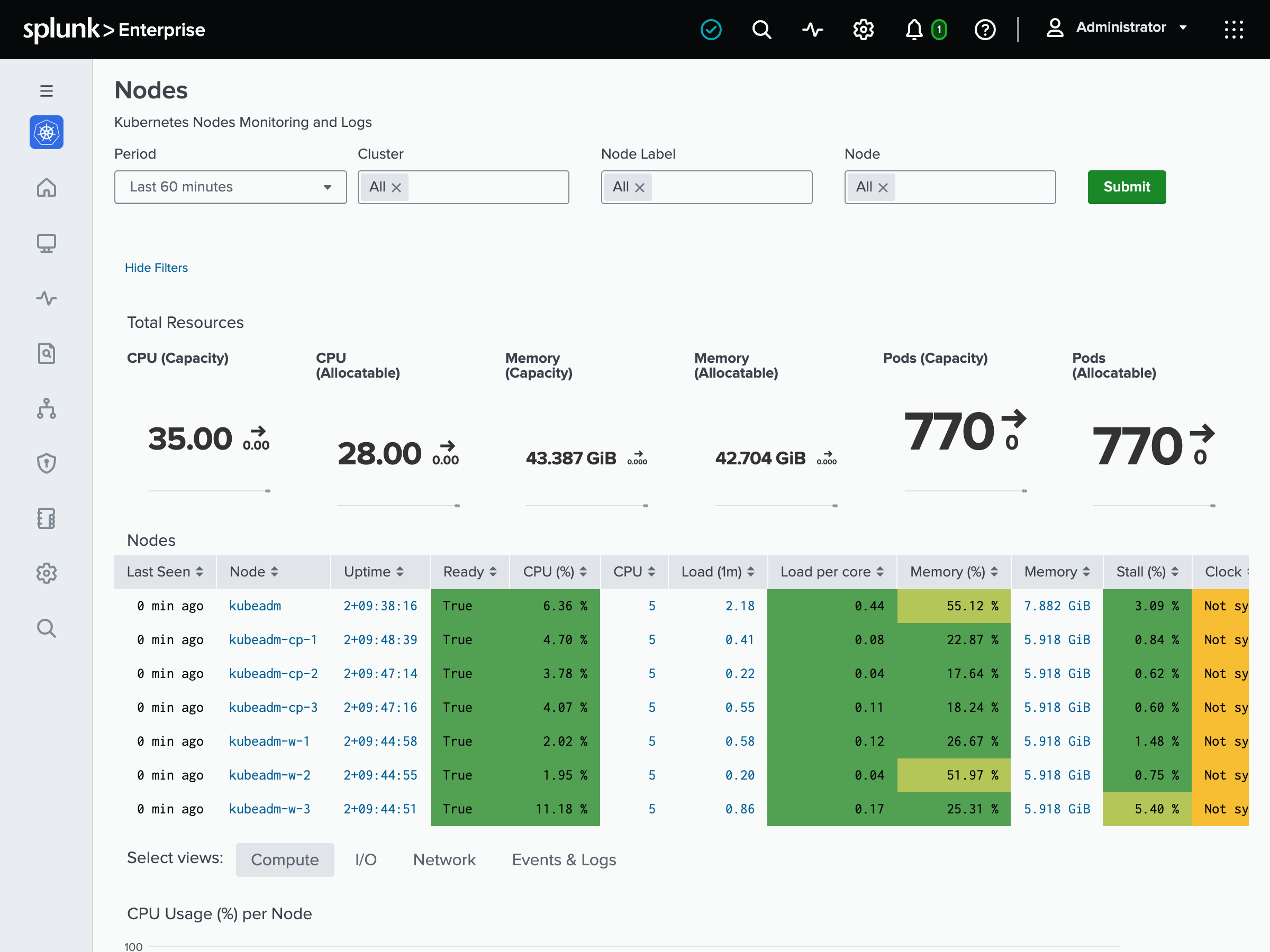
- Nodes lists every node with its resources and usage, and charts them on Compute, I/O, Network and Events & Logs tabs.
- Node is one node in depth, on Compute, Memory, Network, Kernel, Pods, Containers and Logs tabs.
- Pod and Container are one pod or container: CPU, throttling, memory, pressure, I/O and network, with the pod’s conditions and container statuses, and the logs beside them.
- Process is one process on one node: CPU, threads, memory, I/O, system calls and the files it holds open.
- Workload puts the pods of one workload side by side, whatever its kind, from a Deployment to a CronJob.
- Top: Nodes, Top: Pods, Top: Containers and Top: Processes are one table each: the latest CPU and memory of every node, pod, container or process. Click a row to open its page.
Events
The Events pages read the Kubernetes events, from the full timeline to the warnings that keep coming back.
- Event Timeline is every Kubernetes event matching the filters, by type and class.
- Event Overview has the warnings by reason and namespace. It counts how many times they fired beside how many event records there were.
- Workload Failures has the crash loops, OOM kills, and image pull, volume, sandbox and probe failures.
- Scheduling and Node Health has failed scheduling, nodes not ready, evictions and node pressure.
- Recurring Problems has the warnings that keep coming back, over the last seven days by default.
A click on a crash loop, OOM kill, eviction or probe failure opens that pod’s logs. A click on a pod that never started opens its events.
Logs
Logs is the container logs, filtered by cluster, namespace, node, pod, container and stream, with a search box.
Cluster
- Cluster Capacity is how much of each cluster is spoken for, and how that has moved. It shows pods, and the CPU and memory requests, limits and usage, as a share of what the nodes make allocatable.
- Namespace Usage is what each namespace uses against the requests and limits of its running pods.
- Resource Quotas is what each ResourceQuota allows and how much of it is taken.
26.10- Workload Declarations is what the Pod specs declare rather than what the workloads use. It shows request and limit coverage, probes, QoS classes, emptyDir and ephemeral storage, and extended resources such as GPUs, with the containers missing each.
- CPU Throttling is the containers held back by their CPU limit: how often they hit it, what they used, and how close to the limit they ran.
Nodes
Available since Collectord version26.10- Node Inventory describes the nodes as the API server does: readiness and pressure conditions, cordoned nodes, kubelet, runtime and OS versions, taints, pod density, and how workloads spread across zones.
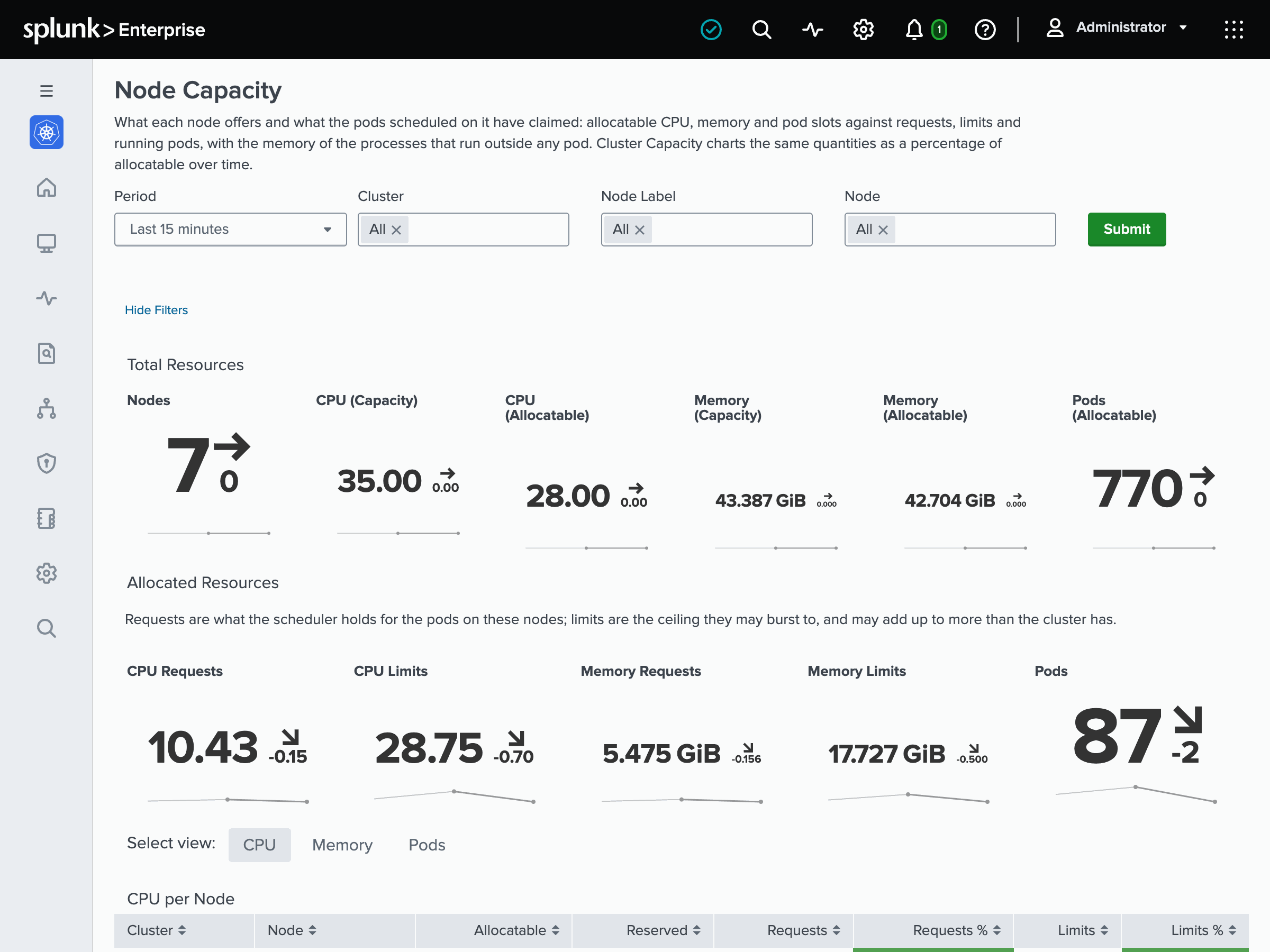
- Node Capacity is what each node offers (allocatable CPU, memory and pod slots) against the requests, limits and pods scheduled on it.
- Filesystem Usage is how full the filesystem holding each node’s kubelet directory is. It adds every other real filesystem once you set
[input.mount_stats] mounts = auto. It also shows the persistent volume claims mounted on the nodes. - Disk I/O is what the block devices underneath are doing: requests and bytes per second, the wait per request and utilization.
- GPU Utilization charts the NVIDIA GPUs and the processes using them, once you deploy the nvidia-smi DaemonSet.
System Components
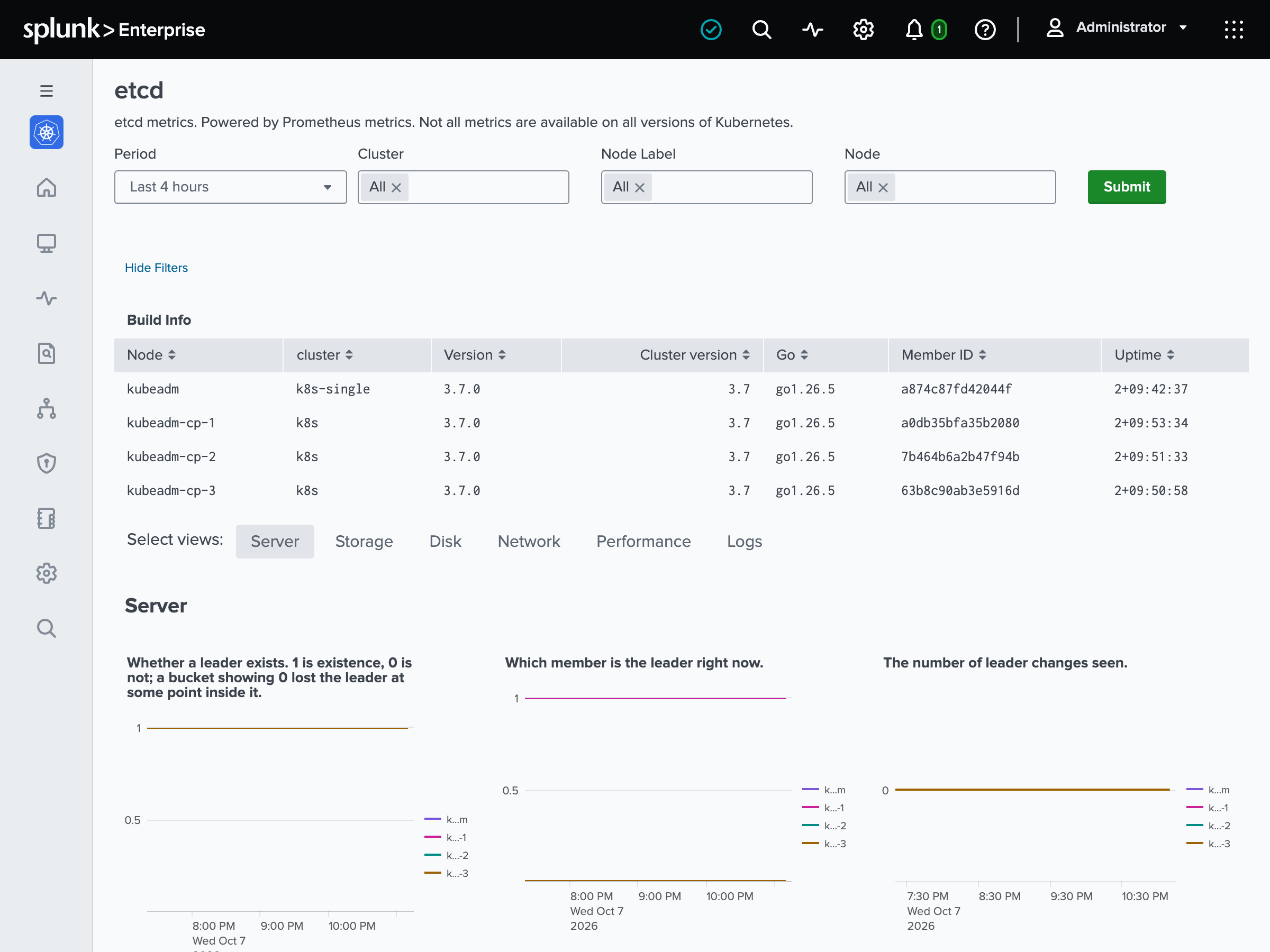
Kubernetes API, Kubelet, etcd, Scheduler, Controller Manager and CoreDNS chart the metrics Collectord scrapes from each component (see Prometheus metrics).
26.10Kube Proxy charts how far behind kube-proxy’s rule sync is and the rules it programs. A cluster whose network plugin replaces kube-proxy, such as Cilium without kube-proxy, leaves it empty.
Security
- Pod Security Posture grades every container in the Pod specs against the Kubernetes Pod Security Standards, and gives each pod the strictest profile it satisfies. The checks cover privileged containers, host namespaces and paths, capabilities, root, seccomp and AppArmor profiles, and mutable image tags.
- Privileged Containers is what container processes actually hold at runtime, read from
/procon the nodes: processes running as root and processes holding Linux capabilities. - Access is who got in: SSH logins and sudo on the nodes, and exec sessions and forbidden requests against the API server.
The Network submenu has three pages:
- Network (overview) is where nodes and containers connect: the outside connections on a table and a map, and the local ones beside them.
- Network (connections) is the destinations outside the cluster, geolocated, and the traffic that crosses namespace boundaries.
- Network (traffic) charts what the nodes, namespaces and pods receive and transmit.
Audit
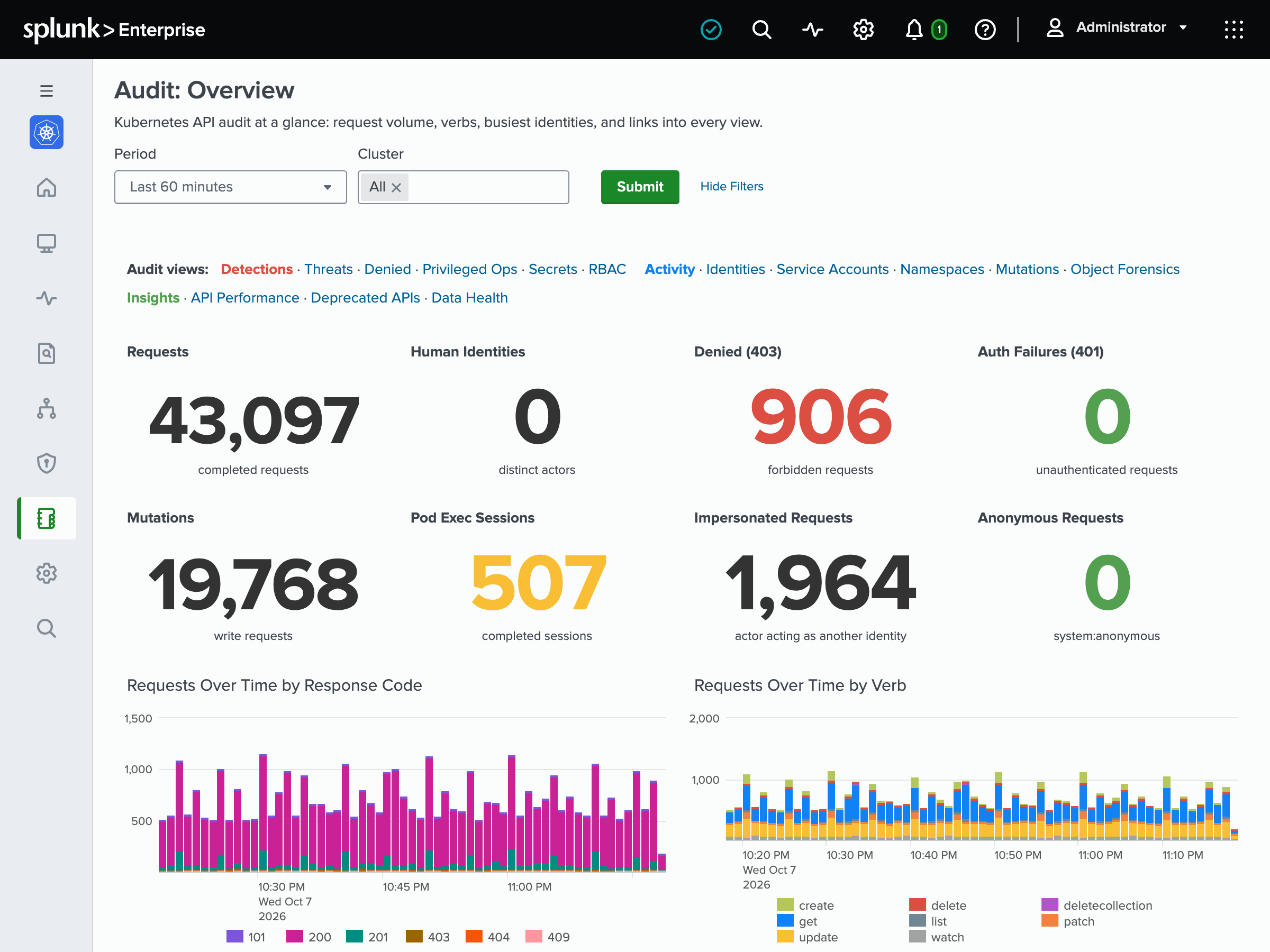
Available since Collectord version26.10The Audit menu reads the API server audit log (see Audit logs).
- Audit: Overview is the request volume, verbs and busiest identities, with links into every other view.
- Detections holds Security Threats, Denied and Failed Requests, Privileged Operations (exec, attach, port-forward), Secrets and ConfigMaps, and RBAC and Privilege.
- Activity is who did what: Identities, Service Accounts, Namespaces, Resource Mutations, and Object Forensics, the full timeline of one object.
- Insights has API Performance, Deprecated APIs for upgrade readiness, and Data Health. Data Health says whether the audit data is complete and which audit policy the request-body panels need.
Setup
Configuration is the app’s setup page. It holds:
- which dashboard set the menu shows;
- the Legacy alerts switch for the alerts earlier versions shipped;
- the macros you may change for your deployment: the indexes, the scope every alert adds, the Overview’s thresholds and where Splunk’s license usage is read. Each links to its editor in Settings › Advanced search › Search macros.
Two tiles on it show whether stats reached the events index or the metrics index in the last 15 minutes.
Collectord usage shows the Collectord instances reporting, the licensed units in use, licenses expiring soon and failing license checks, and the Collectord versions over time. Its tables have one row per license, per Collectord instance and per failed check.
Collectord metrics is Collectord’s own health, on four tabs: Splunk Output, Files, Pipelines and Errors. Splunk Output has what it posted, failed requests, request time, retries and delivery lag. Errors has the events Collectord tagged with an error, the warnings it reports, and data it lost.
Splunk Usage Report shows what Collectord’s data costs on your Splunk license, read from Splunk’s own license meter. It has four tabs:
- Overview: the licensed volume per day by source type and by index, and what it is made of.
- Breakdown: the volume by namespace, pod, container, image, node, stream, source type or index.
- Log patterns: the heaviest log patterns and who wrote them, once Collectord’s pattern report is switched on.
- Delivery: the bytes Collectord read from log files and posted, beside what the license counted.
26.10Alert Catalog is where you pick the app’s alerts from 118 templates, scope each to your clusters and namespaces, and create it (see Alert Catalog). Alerts and Dashboards are Splunk’s own lists of the alerts and dashboards in the app.
The metrics-index set
With the metrics-index dashboards chosen, the menu shows their twins. These pages read the stats from the metrics index with mstats and look the same as the events-index pages:
- the Overview, Nodes, Node, Pod, Container, Process, Workload and the four Top pages;
- Cluster Capacity, Namespace Usage, CPU Throttling, Node Capacity, Filesystem Usage, Disk I/O, GPU Utilization and the System Components pages;
- Privileged Containers and Network (traffic);
- Collectord usage, Collectord metrics and the Splunk Usage Report.
The pages below are the same in both sets, since the events, logs, objects, socket table and audit log they read go to the events index only:
- the Events pages and Logs;
- Resource Quotas, Workload Declarations and Node Inventory;
- Pod Security Posture, Access, Network (overview) and Network (connections);
- the Audit menu.