This guide walks through Monitoring Docker menu by menu: what each page is for. The pages lead you to what needs fixing: the Overview says whether anything is wrong and where, and its tiles and rows drill down to the page that shows the cause.
The app shows what Collectord sends from each Docker or Podman host: container logs and stats, the host’s stats, and the Docker daemon’s events and objects. It also shows the Swarm’s services, tasks and nodes, and Collectord’s own metrics.
The app lays them out under the Overview, Events and Logs pages and the Monitoring, Services, Infrastructure and Setup menus. Every dashboard has a Period picker, and most have a Cluster picker: the cluster is the fields.docker_cluster value each Collectord sets (see Multiple clusters).
The stats dashboards come in two sets that look the same: one reads the events index and one reads a metrics index. You choose which set the menu shows on the Configuration page (see Choose the dashboards).
Version 26.10 reorganized the menus without changing any page’s URL, so your bookmarks keep working.
Overview
Available since Collectord version26.10Overview is the page the app opens on. It tells you whether anything is wrong, where, and who to tell.
The Fleet tab opens with one verdict for the fleet and seven tiles, each opening the table it counts. The tiles count hosts whose stats went silent, Collectord problems, and containers needing attention, OOM killed, in a restart loop, unhealthy or exited with a non-zero code. Below them, the tab shows:
- every host with a severity;
- what each host sent and how far behind Collectord delivers;
- each host’s CPU and memory against its running containers’ limits;
- the container problems over time.
The Containers tab lists the containers that need attention, by Swarm stack and service or Compose project and service, then every container by state.
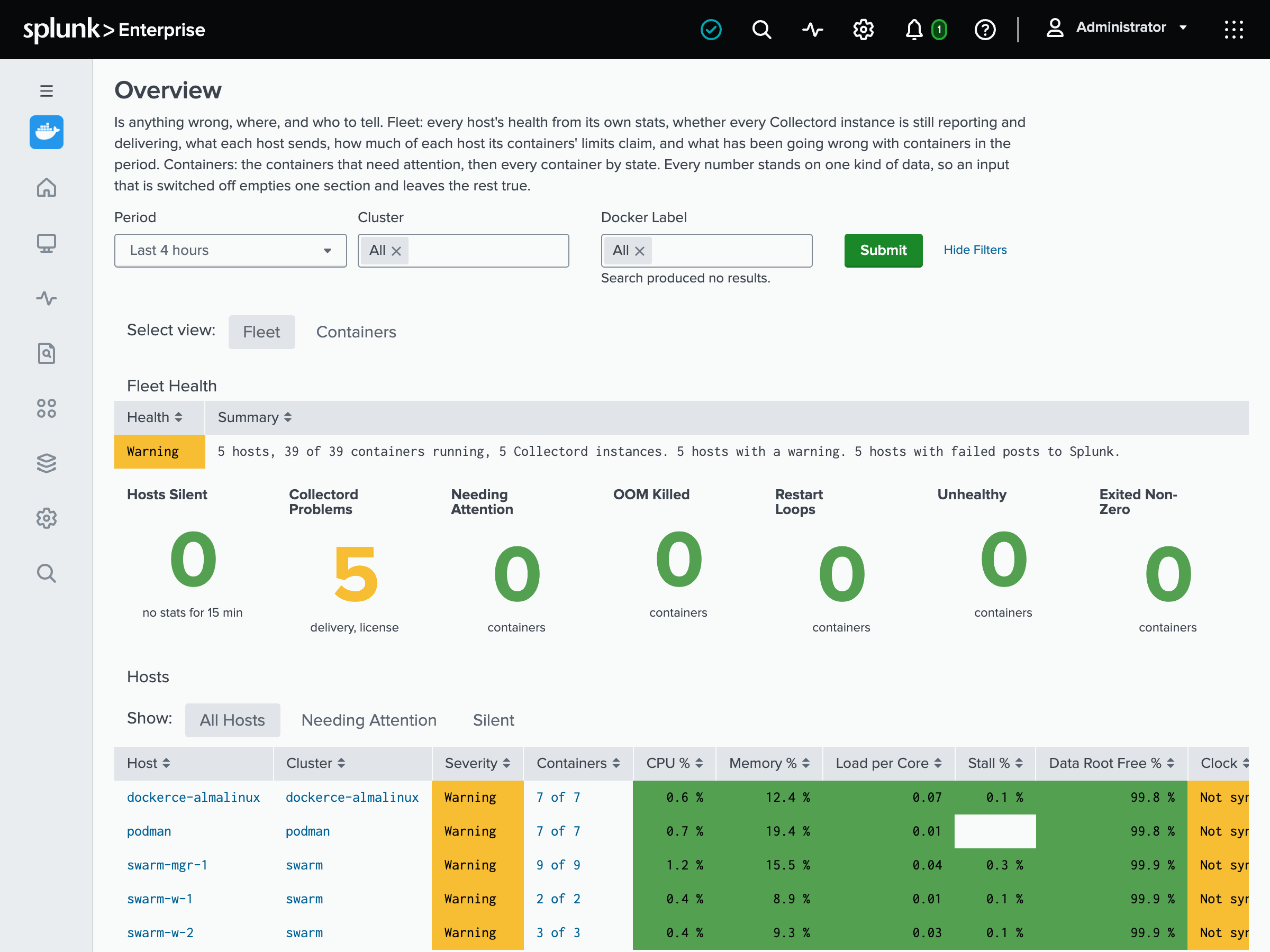
Three macros hold the Overview’s rules, and you can change all three:
macro_docker_host_severity: the rules of the host severity, which follows the colors of the Hosts page.macro_docker_collectord_silent_seconds: when Collectord counts as silent (15 minutes).macro_docker_license_check_stale_seconds: when its license check counts as stale (two missed hourly license checks).
Monitoring
Open the Monitoring pages to follow resource usage from every host down to a single process.
- Hosts lists every host with its resources and usage, under the alerts the app triggered that have not expired yet. It charts them on Compute, I/O, Network, Containers and Logs tabs.
- Host is one host in depth, on Compute, Memory, Network, Kernel, Containers, Processes and Logs tabs.
26.10Inventory is what each host is: its distribution, kernel, architecture, CPU, memory and hypervisor, how long it has been up, and the Docker engine and Collectord it runs. It also shows the fleet’s spread by distribution, kernel, Docker version and hypervisor.
Collectord 26.10.1 and later send the distribution, architecture, CPU and hypervisor. A host on an earlier version shows “-” there.
- Container is one container: CPU, throttling, memory, pressure, I/O and network, with its processes, events and logs, and Compose Project and Compose Service pickers.
- Process is one process on one host: CPU, threads, memory, I/O, system calls and the files it holds open.
- Top: Hosts, Top: Containers and Top: Processes are one table each: the latest CPU and memory of every host, container or process, with a container’s limits and its Compose project and service. Click a row to open its page.
Events and Logs
- Events is the Docker daemon’s events, filtered by host, type and action.
- Logs is the container logs, filtered by cluster, host, Compose project and service, container and stream, with a search box.
Services
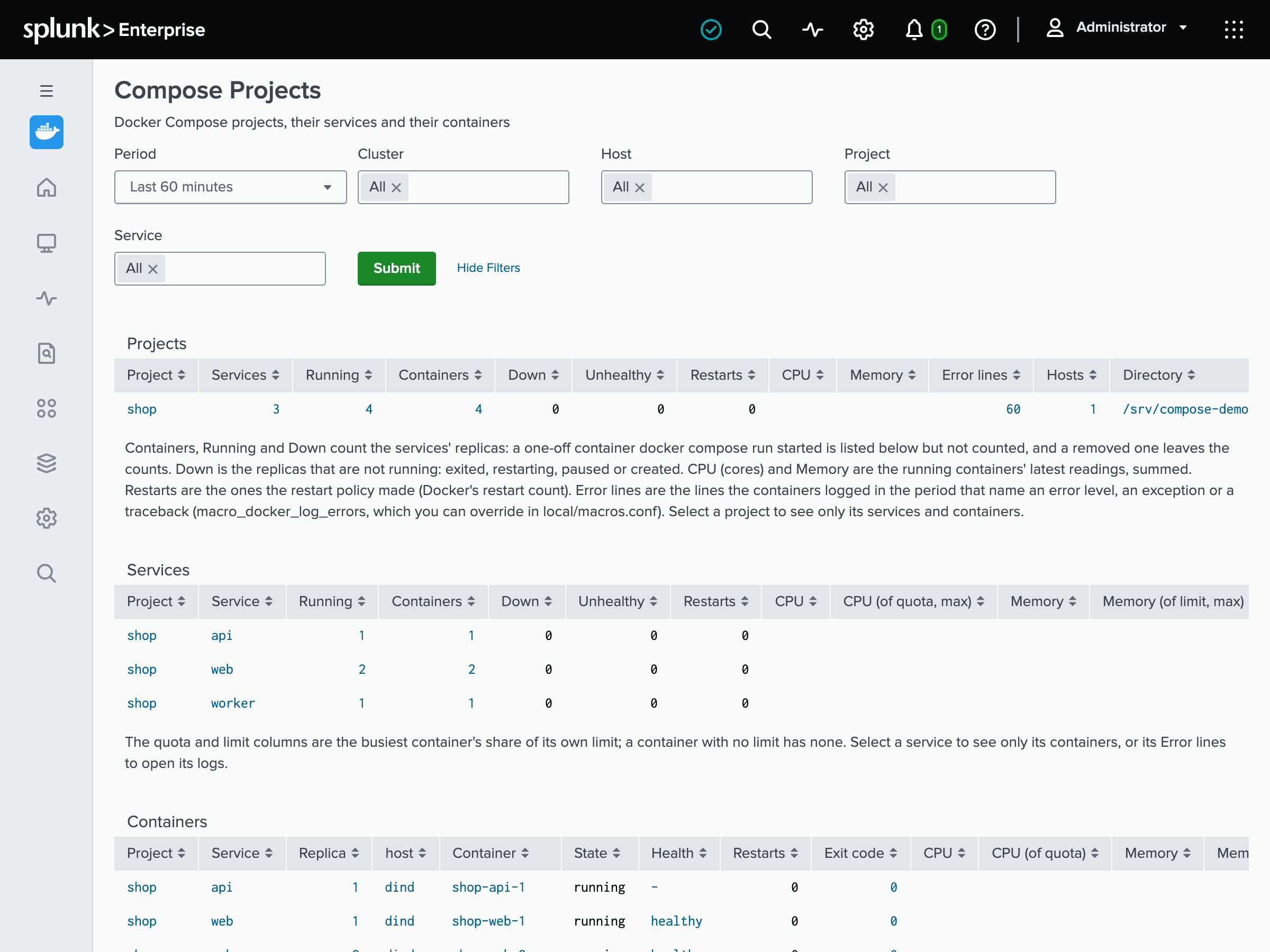
Available since Collectord version26.10Compose Projects goes from Docker Compose projects to their services and containers. It shows:
- the replicas running and down;
- failing health checks, restarts and the last exit code;
- CPU and memory against the containers’ limits;
- the lines they logged that name an error.
What counts as an error line is macro_docker_log_errors, which you can change to match your applications’ log format.
Swarm Services is the Swarm as its leader reports it:
- the services, with their running and desired tasks and the state of their last update;
- the tasks with errors;
- the nodes, with their role, availability and status;
- the containers of the services.
The Swarm’s records need Collectord 26.10.1 running on the Swarm’s managers (see Docker Swarm).
AWS ECS Services is the containers of ECS tasks, by task definition family and version.
Infrastructure
- Privileged Containers is what container processes actually hold at runtime, read from
/procon every host: processes running as root and processes holding Linux capabilities. - Network is where hosts and containers connect: the outside connections on a table and a map, and the local ones beside them.
- Filesystem Usage is how full the filesystem holding Docker’s data root is. It adds every other real filesystem once you set
[input.mount_stats] mounts = auto. It also lists the volumes Docker keeps, largest first, with the ones no container uses highlighted. - Disk I/O is what the block devices underneath are doing: requests and bytes per second, the wait per request and utilization.
- CPU Throttling is the containers held back by their CPU quota: how often they hit it, what they used, and how close to the quota they ran.
Setup
Configuration is the app’s setup page. It holds:
- which dashboard set the menu shows;
- the Legacy alerts switch for the alerts earlier versions shipped;
- the macros you may change for your deployment: the indexes, the scope every alert adds, the Overview’s thresholds and host severity, the Compose error lines and where Splunk’s license usage is read. Each links to its editor in Settings › Advanced search › Search macros.
Two tiles on it show whether stats reached the events index or the metrics index in the last 15 minutes.
Collectord usage shows the Collectord instances reporting, the licensed units in use, licenses expiring soon and failing license checks, and the Collectord versions over time. Its tables have one row per license, per Collectord instance and per failed check.
Collectord metrics is Collectord’s own health, on four tabs: Splunk Output, Files, Pipelines and Errors. Splunk Output has what it posted, failed requests, request time, retries and delivery lag. Errors has the events Collectord tagged with an error, the warnings it reports, and data it lost.
Splunk Usage Report shows what Collectord’s data costs on your Splunk license, read from Splunk’s own license meter. It has four tabs:
- Overview: the licensed volume per day by source type and by index, and what it is made of.
- Breakdown: the volume by container, image, host, stream, source type, index, Compose project or Compose service.
- Log patterns: the heaviest log patterns and who wrote them, once Collectord’s pattern report is switched on.
- Delivery: the bytes Collectord read from log files and posted, beside what the license counted.
26.10Alert Catalog is where you pick the app’s alerts from 61 templates, scope each to your clusters, and create it (see Alert Catalog). Alerts and Dashboards are Splunk’s own lists of the alerts and dashboards in the app.
The metrics-index set
With the metrics-index dashboards chosen, the menu shows their twins. These pages read the stats from the metrics index with mstats and look the same as the events-index pages:
- the Overview, Hosts, Host, Inventory, Container, Process and the three Top pages;
- Compose Projects, Swarm Services and AWS ECS Services;
- Privileged Containers, Filesystem Usage, Disk I/O and CPU Throttling;
- Collectord usage, Collectord metrics and the Splunk Usage Report.
They take the cluster from fields.docker_cluster alone, not from a cluster= label (see Metrics index).
Events, Logs and Network are the same pages in both sets. The Swarm’s records, the socket table and the logs on the other pages come from the events index in both sets, since it is the only one that carries them.