The agent also works with nobody watching, in two ways. Neither can create or modify anything in Splunk - the authoring tools are not even offered to the model - and neither can pause for an approval nobody is there to give. The one thing an unattended run can write is a decision for an alert of yours to act on, and only when you configure one.
Scheduled reports with | osai task=
Put | osai task="<instruction>" in a saved search, schedule it, and attach an email or webhook action. Every run is a full agent investigation - search, discovery, verification - that emits a self-contained markdown report as its result. “Check every index for ingestion gaps in the last 24 hours” on a daily cron, delivered by email, is a recurring agent report with no extra infrastructure. Add decisions= and decision_index= and each run also reaches the decisions you define. The syntax is in The osai command.
A scheduled search runs as its owner, with that user’s Splunk permissions and that user’s schedule_search capability. A search shared at app level has no owner - it runs as splunk-system-user - so give it run_as=<user>: the run acts as that user, on a token minted for them, and the conversation lands in their Chat, the way an app-shared alert action’s does. As for such an alert, that user must hold use_os_ai_agent and run_os_ai_agent_alerts, the search head needs splunkd token authentication enabled, and run_as= is accepted with task= only. Every run is a chat job, gated and metered like a chat turn; see The osai command.
The “Ask OS AI Agent” alert action
Attach the Ask OS AI Agent action to any Splunk alert. When the alert fires, the agent investigates it - armed with the alert’s name, a link to its results, and a bounded sample of the triggering rows - and the findings appear as a new conversation in Chat, with the full tool activity recorded. The action itself only enqueues the job, in well under a second; the app’s background worker does the work, so slow model calls never run inside Splunk’s alert-action time budget. An alert that triggers for each result gets one investigation per result, each carrying only the row that fired it.
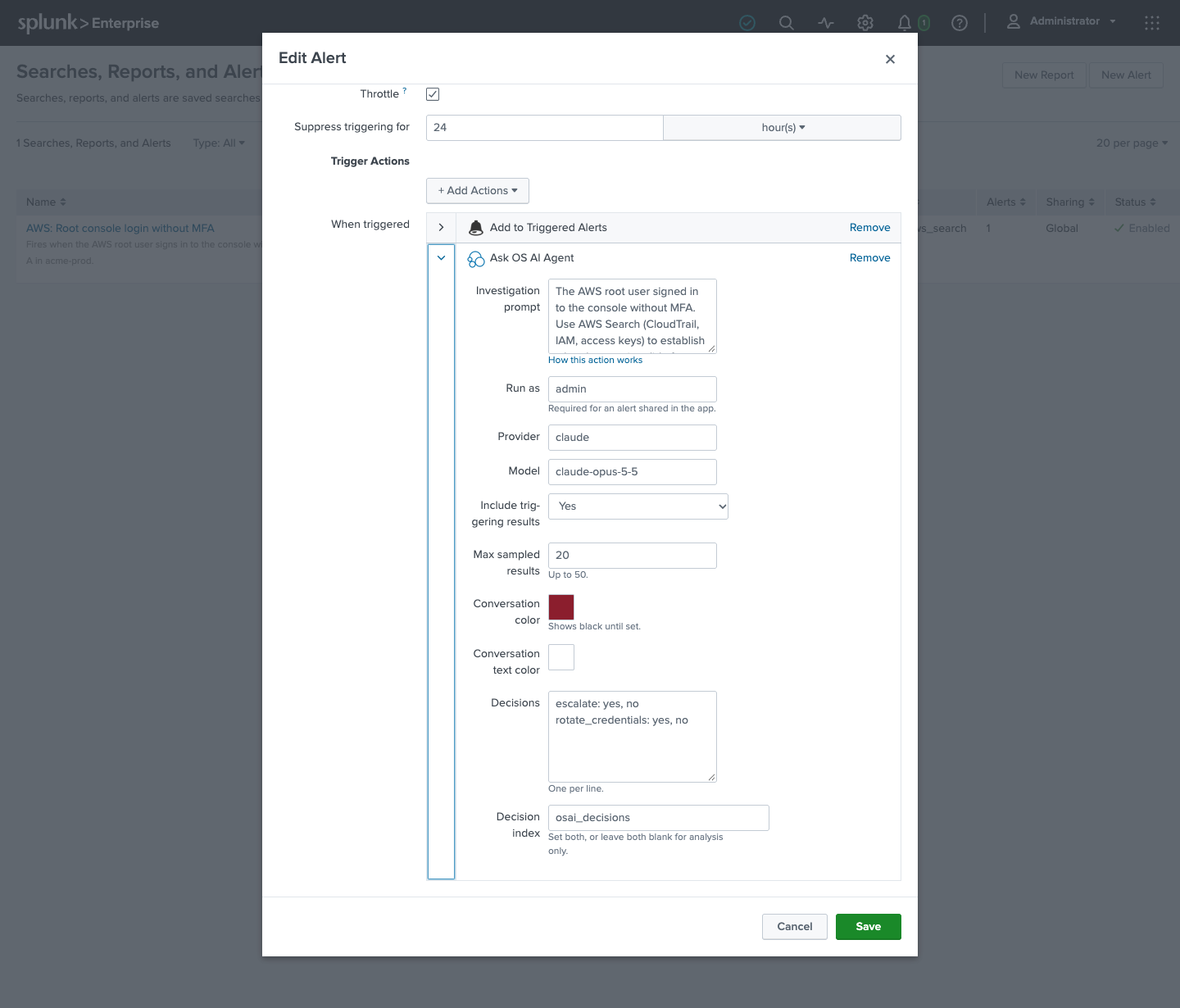
The action’s parameters, in the alert editor:
| Parameter | What it does |
|---|---|
| Investigation prompt | What the agent should figure out. The alert’s name, owner, results link, and result sample are appended automatically. Default: determine what happened, whether it looks expected or anomalous, and what to do next. |
| Run as | The Splunk user the investigation runs as, and whose Chat receives the findings. See below. |
| Provider, Model | Overrides for this alert. Default: the app’s default provider and its default model. |
| Include triggering results, Max sampled results | Attach a sample of the alert’s result rows (1 to 50, default 20, capped at 64 KiB) so the agent reasons over real data. The rows are read by the worker, as the run-as user, so the sample is exactly what that user may see. |
| Conversation color, Conversation text color | The background and text color of the investigation’s row in the Chat sidebar, so the conversations an alert opens stand out from the ones people start by hand. Pick a swatch or type a hex color such as #1f6feb. The swatch reads black until you pick one: that is the unset state, and the row keeps the theme’s colors. The picker has no “none”, so to go back to the theme’s colors once one is set, clear action.osai_investigate.param.color_bg and action.osai_investigate.param.color_text in the alert’s Advanced edit. A value that is not a hex color is stored as no color, and the action’s log says so. |
| Decisions, Decision index | What the run must decide, and the index its answers are written to. Leave both blank for an analysis-only run, which is how every alert behaves until you set them. See Decisions. |
Who the investigation runs as
An investigation runs as a named user, with that user’s own Splunk permissions, and its findings land in that user’s Chat:
- A user-owned alert runs as its owner. Leave Run as blank.
- An app-shared alert - one shared at app level, with owner
nobody, which is how every alert an app ships appears (all of Monitoring Kubernetes’, for instance) - fires assplunk-system-userand has no person behind it. It needs a Run as user, and that user must hold theuse_os_ai_agentandrun_os_ai_agent_alertscapabilities, which the shippedos_ai_agent_alertsrole carries and which only a Splunk administrator can grant. Without one, the action refuses the alert with a clear line in its log.
The reason for that capability is worth knowing: a shared alert fires as the system user, whose session would authorize any “Run as”, so whoever can edit the alert could otherwise have the agent act as anyone. Holding the capability is an administrator’s consent to be that principal. It is granted to no built-in role on purpose, and it says what may be done in its holder’s name, not what the holder may do.
Naming a user other than the alert’s owner on a user-owned alert takes edit_tokens_all, Splunk’s own authority to mint tokens for other users, which an ordinary user does not hold - so a private alert always runs as its owner.
Token authentication
The session key Splunk hands an alert action stops working seconds after the action exits, so the app’s worker mints a short-lived splunkd authentication token for the run-as user when the job runs, and revokes it when the job settles. This requires token authentication to be enabled on the search head (Settings - Tokens). It is off by default on Splunk Enterprise and on new Splunk Cloud stacks. The app’s health endpoint reports the scheme’s state and names the alerts affected while it is off, and a job that cannot mint a token fails with that reason in its conversation instead of running.
Throttle alerts that fire often
A user is limited to a number of active chat jobs at once (10 by default; see Configuration), so an alert that can fire rapidly should set throttling in the alert editor, or investigations will be dropped rather than queued without bound.
Decisions
An investigation tells a person what happened. When you also want something done about it - page the on-call engineer, open a ticket, restart a service - ask the run to decide, and let an ordinary Splunk alert of yours act on the answer. The agent never acts itself. It picks each answer from a list you wrote, and when the run concludes the app writes the answers to an index as one event; your alert over that index does the remediation, under its own owner’s permissions and with its own throttling.
Decisions belong to the two unattended surfaces, the alert action and | osai task=. prompt= and explain= refuse them, and a turn you add yourself to an alert’s conversation in Chat never writes one.
Configure them
Two settings, which go together: Decisions and Decision index on the alert action, decisions= and decision_index= on the search command.
Decisions lists what the run has to decide and the answers each decision allows, one decision per line - its name, a colon, and its answers:
page: yes, no
severity: high, medium, low
On the search command the list stays on one line, so separate decisions with ; instead; the alert action accepts either. A JSON object mapping each decision to its answers - {"page": ["yes", "no"], "severity": ["high", "medium", "low"]} - is accepted on both and means exactly the same thing, for a configuration another tool generates.
- A name or an answer starts with a letter or digit and uses only letters, digits,
_,-, and., up to 64 characters. - Each decision needs at least two answers to choose between, and takes at most 32. A name appears once, an answer appears once per decision, and one run takes at most 32 decisions.
- The order you write them in is the order the run is briefed in.
Decision index names the index the answers are written to: letters, digits, _, and -. Create it before the first run writes to it, wherever your search head’s own data is indexed, as you would a summary index: Splunk accepts an event for an index that does not exist and drops it, with only a warning in splunkd.log.
Setting one of the two without the other is refused rather than ignored: decisions with no index throw the answers away, and an index with no decisions writes an event nothing can match. The alert action then opens no conversation and logs the reason in os_ai_agent_alert.log, and | osai returns an error before anything runs. | osai also checks the list itself, so a typo is an error on the search that typed it. The alert action checks only that both settings are present when the alert fires, so a list that does not parse fails that investigation, with the reason in its conversation.
How the run decides
The prompt - the alert’s Investigation prompt, or the task= text - says how to decide: “page when checkout is failing for customers; severity is high when every region is affected”. The list says what may be decided. The run is briefed with your decisions before it starts, answers each one with the set_decision tool, and may revise an answer as the evidence changes; the last answer stands. An answer that is not on your list is refused, so the agent cannot coin one, and neither can anything it reads in your data. That closed list is what lets a downstream alert match on decision.page=yes: it is matching your word.
If the agent finishes with a decision unanswered, it is asked again, at most twice. A decision still unanswered after that is left out of the event and named under unanswered, which your alert can test for.
What is written
Nothing is written while the run is going. When it concludes, the app writes one event with the sourcetype os_ai_agent:decision to your index. A run that fails, or that you stop before it concludes, writes nothing, so no remediation fires on a half-finished investigation. An alert that triggers for each result opens one investigation per result, and each writes its own event.
The event is JSON, and Splunk extracts its fields at search time:
| Field | What it holds |
|---|---|
decided_at | When the run concluded, and the event’s timestamp. |
decision | Each decision mapped to the answer the run gave it: decision.page, decision.severity. A decision the run did not answer is absent. |
rationale | The agent’s reasons, keyed the same way (rationale.page). Prose for whoever reads the event; nothing should trigger on it. |
unanswered | The decisions the run did not answer, when there are any. |
search_name, alert_sid, results_link | For an alert’s run, the alert that fired. The alert’s search job and its results link expire; search_name does not. |
alert_sample | The triggering rows the run was given, when they fit in 4,096 characters. When they do not, or the event needed the room, alert_sample_omitted says where to find them instead. |
omitted | What was dropped to keep the event under 16 KB: the sample first, then the rationales. The answers are never dropped. |
thread_id, job_id | The conversation and the run, where the full reasoning is. |
user | The user the run acted as. |
surface | alert for the alert action, spl for | osai. |
The run’s conversation carries the same outcome in a Decision recorded note next to the agent’s report: each answer with its reason, and whether the event was written or why it was not. Decision events are indexed data, and count toward your Splunk license like any other event.
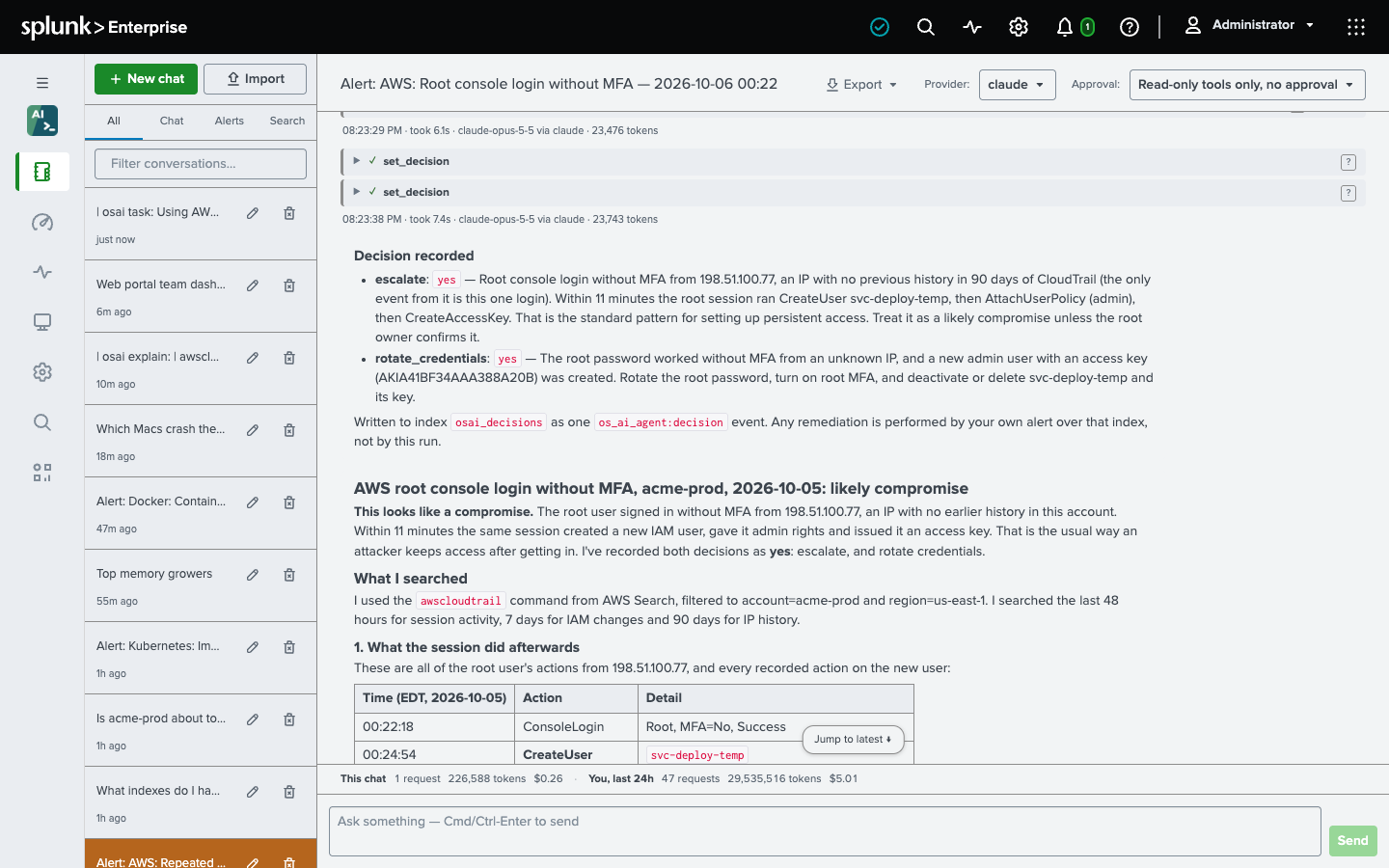
The remediation is an ordinary alert over that index. Say the “Payments API error rate” alert writes the decisions above to agent_decisions; an alert that pages on-call when its run says so searches:
index=agent_decisions sourcetype=os_ai_agent:decision search_name="Payments API error rate" decision.page=yesSchedule it like any alert, attach your paging action, and throttle it. Before you wire anything to the index, let the runs decide against real traffic with nothing acting on them, and compare their answers with what actually happened.
Who writes it
The event is written as the user the run acts as - an alert’s owner or its Run as user, or whoever ran the | osai search (for a scheduled search, its owner) or its run_as= user - on that run’s own credential, so that user’s permissions decide whether it lands, not anything the app grants itself. The user needs one of two Splunk capabilities:
run_collect- preferred. It means exactly “may write events to an index”, and summary indexing uses it too.edit_tcp- a grant over the instance’s TCP input configuration, far more than this needs, accepted only because Splunk’s simple receiver sits behind it.
The app writes with | collect first, and falls back to the simple receiver only when Splunk reports that the collect search failed and so wrote nothing - the missing run_collect case - so either grant works. When the app cannot tell whether the collect search wrote the event, it does not retry, because a second write would fire your alert twice: the Decision recorded note says the write could not be confirmed and names the run’s job, so you can look for the event before you act.
Where to look
- The findings: a new conversation in the run-as user’s Chat, titled after the alert and listed under the sidebar’s Alerts tab.
- Every enqueue and every refusal: one line in the action’s log,
index=_internal sourcetype=os_ai_agent:alert(the fileos_ai_agent_alert.log). The Health dashboard shows its newest warnings and errors. - A run’s decision:
index=<your decision index> sourcetype=os_ai_agent:decision, and the Decision recorded note in its conversation. - The run itself, with every tool it called: the Activity Trail dashboard’s Unattended tab, or
index=_internal sourcetype=os_ai_agent:audit task_mode=true. - Spend attributed to the alert that triggered it: the Token Usage dashboard’s Unattended tab. Each usage record names its trigger -
alert:<saved search name>for the alert action - when Splunk can vouch for it; an alert an ordinary user owns recordsalert (unverified), and one whose search job Splunk no longer knows recordsalert (unresolved)(see Dashboards).