OS AI Agent runs out of the box with no license key on a free tier. A paid license is priced per user: it lifts the provider cap, enables your whole team, and covers commercial use. Licensing is enforced offline: the app never phones home.
Free tier
With no license key configured, the app provides:
- One configured provider.
- One user - the seat.
- One installation, for non-commercial use per the license agreement.
The seat is claimed by the first person a run is submitted for - a message in Chat, a | osai search, or the run-as user of an alert investigation; opening the app does not take it - and an administrator can set or change it on the License tab. The free tier never expires. It is enough to evaluate the app and to run it for one person with one provider.
Paid
A paid license unlocks:
- Any number of providers.
- Every user holding
use_os_ai_agent. The license covers a number of users, and going over it is a warning, not a limit - see Licensed users. - Commercial use.
Licensed users
A license covers a number of users: the Splunk users holding the use_os_ai_agent capability, directly or through an imported role - the app’s os_ai_agent_user role holds it, and os_ai_agent_admin imports os_ai_agent_user. The app counts the users Splunk lists under Settings - Users. Splunk administrators - users holding admin_all_objects, such as admin, or sc_admin on Splunk Cloud - can use the agent without the capability and are not counted.
Licenses are sold per user per year; see Pricing.
The health check counts the users every 5 minutes on each search head, and the License tab shows the users your license covers beside the users holding use_os_ai_agent. Going over is never an outage: Chat, | osai and alert investigations keep working for everyone, while the License tab and a bulletin message name both numbers until you extend the license or take the capability from users who no longer need it.
What happens at the limits
Enforcement is designed to be predictable and never to lose your configuration:
- Adding a second provider on the free tier is refused with a clear message, and the Add provider button says why. The provider you already have keeps working. A paid license has no provider limit.
- More users than your license covers is a warning, never a refusal - see Licensed users.
- A second user on the free tier is turned away when they send a message; the refusal is recorded in the activity trail, and the License tab shows who holds the seat.
- An expired paid license keeps working through a 14-day grace period, with a warning. After grace, the app enforces the free tier again - one provider, one user - until you renew. Nothing is deleted.
- An invalid or mistyped key counts as no key: the app warns and runs as the free tier until you replace it.
- Falling back to the free tier with several providers still configured - after the grace period, a removed key, or a mistyped one - does not pick one provider to keep serving. While more providers are configured than the tier allows, Chat and
| osaiare refused for everyone with a message that names both numbers. Renew the license, or remove providers on the Setup page until the count fits. Nothing is deleted for you. - The bell says so. Administrators see a Splunk bulletin message while the key is invalid, expires within 30 days, is in its grace period, or has run past it, another while more providers are configured than the free tier allows, and a warning while more users hold
use_os_ai_agentthan the license covers. Each links to the Setup tab that fixes it and clears once the problem ends; see Troubleshooting.
Enter a license key
Open the Setup page and go to License. Press Add license, paste the key, and save. Line breaks and spaces an email client wrapped into the key are dropped on save. The tab then shows the current status: the license id, the users it covers beside the users holding use_os_ai_agent, the installations it allows, and the expiration date. Entering, replacing or removing the key, and setting the free tier’s seat, takes a full Splunk administrator (admin_all_objects; sc_admin on Splunk Cloud): the app’s own administrator role sees the License tab read-only. A key you enter or remove takes effect at once; a key that expires is noticed within 30 seconds.
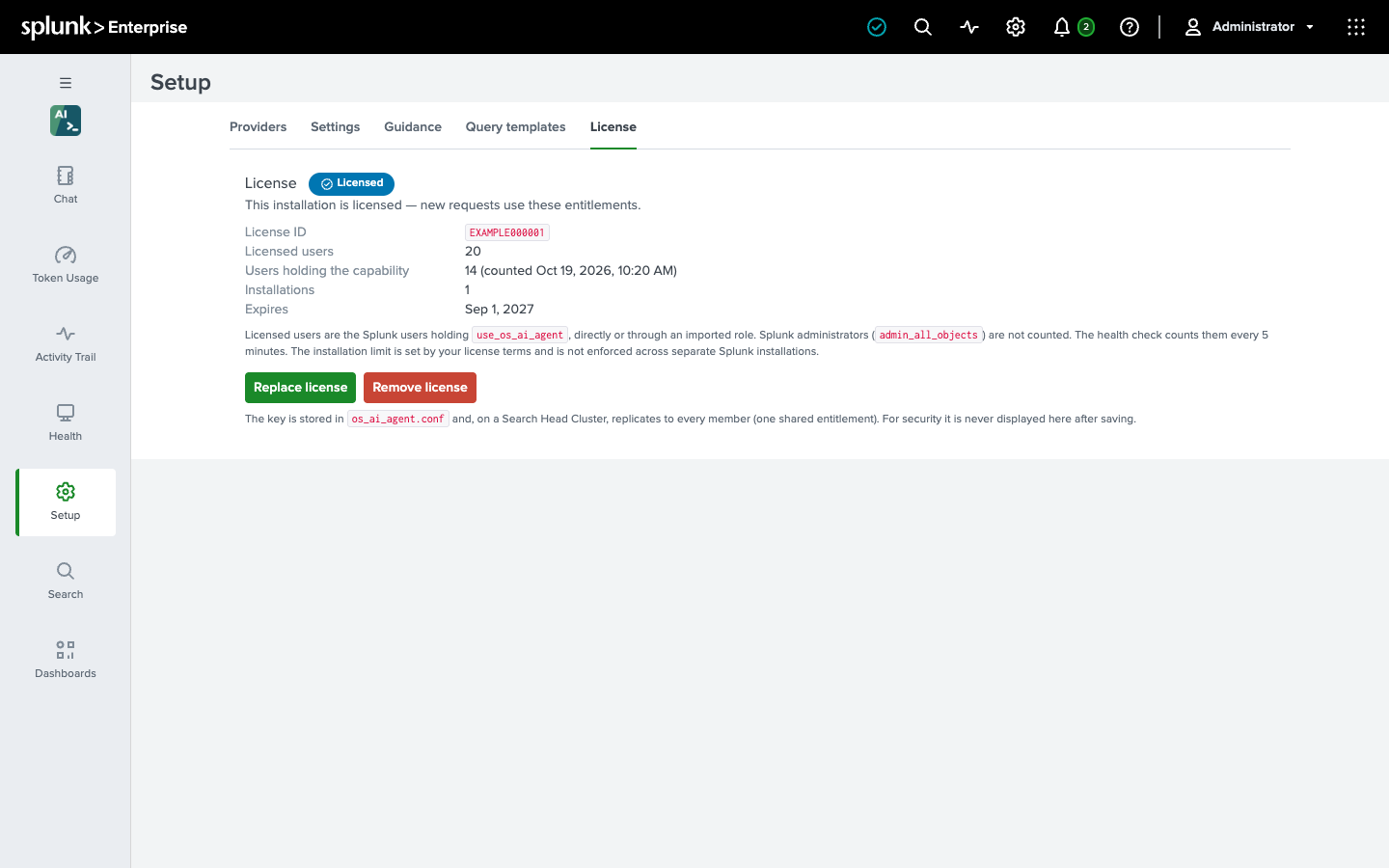
To clear a license and return to the free tier, press Remove license. The key is stored in os_ai_agent.conf, is readable only by full Splunk administrators, and is never displayed again after saving. In a search head cluster it replicates to every member; the cluster counts as one installation.
Evaluate
To try the paid features - more providers, your whole team - contact sales@outcoldsolutions.com to request an evaluation license. The key arrives by email; paste it into the License tab as above.