Chat is the agent’s primary workspace: a multi-turn conversation with a model that can run tools against your Splunk deployment, pause for your approval before it writes anything, and show you exactly what it did. This page covers the workflow.
Conversations
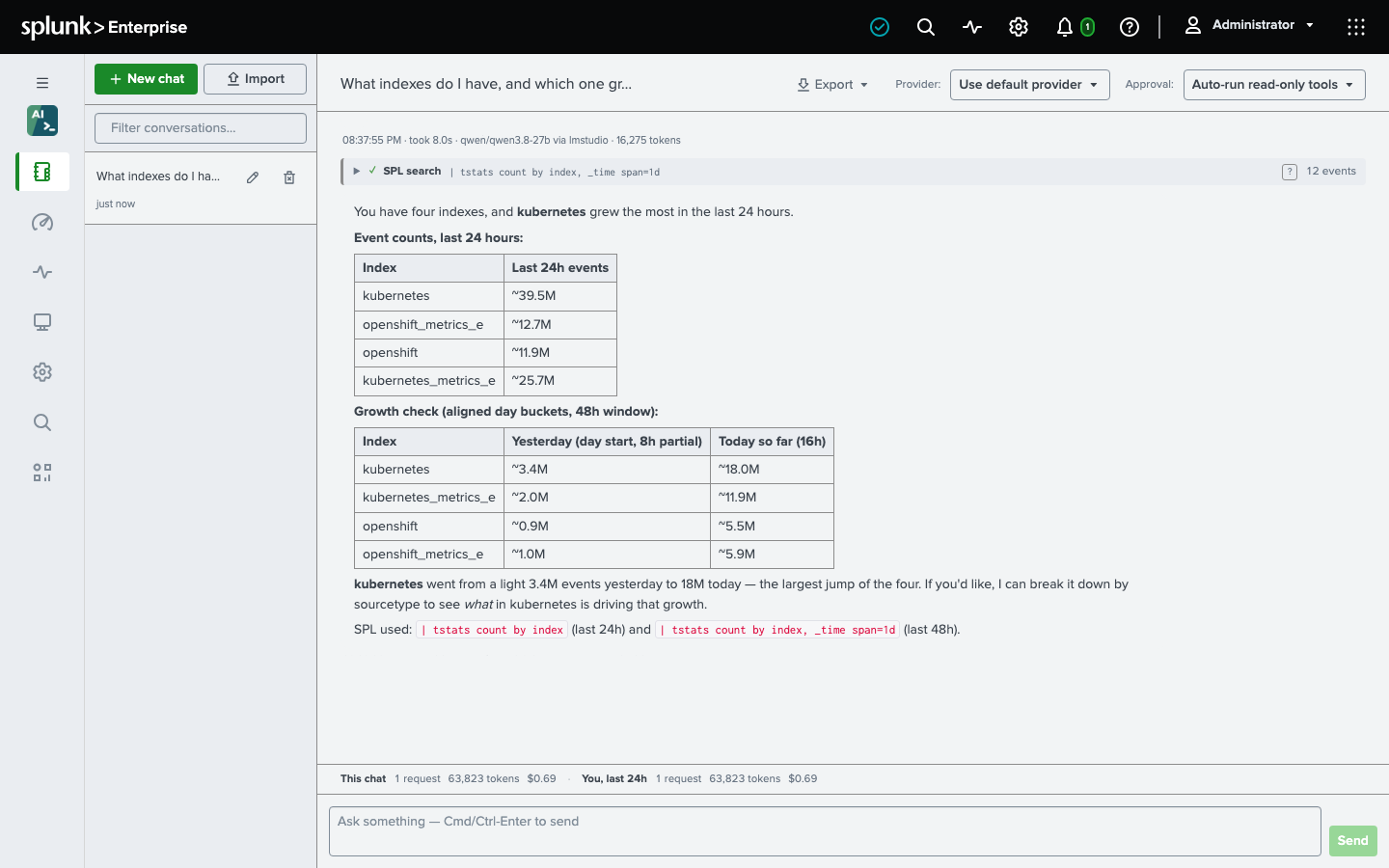
Opening Chat puts you straight into a conversation. New chat in the sidebar starts another; the sidebar lists your 200 most recent conversations, Load older appends the next 200, and the filter box searches titles across every conversation you have. The pencil on a row renames the conversation and sets its colors, and the trash can deletes it. Deleting a conversation stops whatever it was running, including a run paused on an approval card, and hides it at once; it is removed for good after the retention undo window (7 days by default; see Configuration). Conversations are yours: another user cannot see them. An administrator can - the admin, sc_admin, and os_ai_agent_admin roles read them through the app’s Conversation inspector. Only the app itself and Splunk’s own administrators (admin, sc_admin) can write the KV Store collections they are kept in; os_ai_agent_admin reads them and writes none of them.
Every conversation records where it came from, and the tabs above the filter box narrow the sidebar to one kind: All, Chat for the ones started here (imports included), Alerts for the ones the Ask OS AI Agent alert action opens, and Search for the ones | osai opens. Like the filter box, the tabs filter on the server, so they reach your whole history, and the filter box searches within the tab you are on. A conversation from before the app recorded origins counts as Chat. The app decides the origin itself rather than taking a caller’s word for it - for an alert, it asks Splunk which saved search fired - so an alert’s conversation that Splunk cannot place reads as an ordinary chat. From the Alerts or Search tab, New chat and Import switch the sidebar to Chat, where the new conversation is listed.
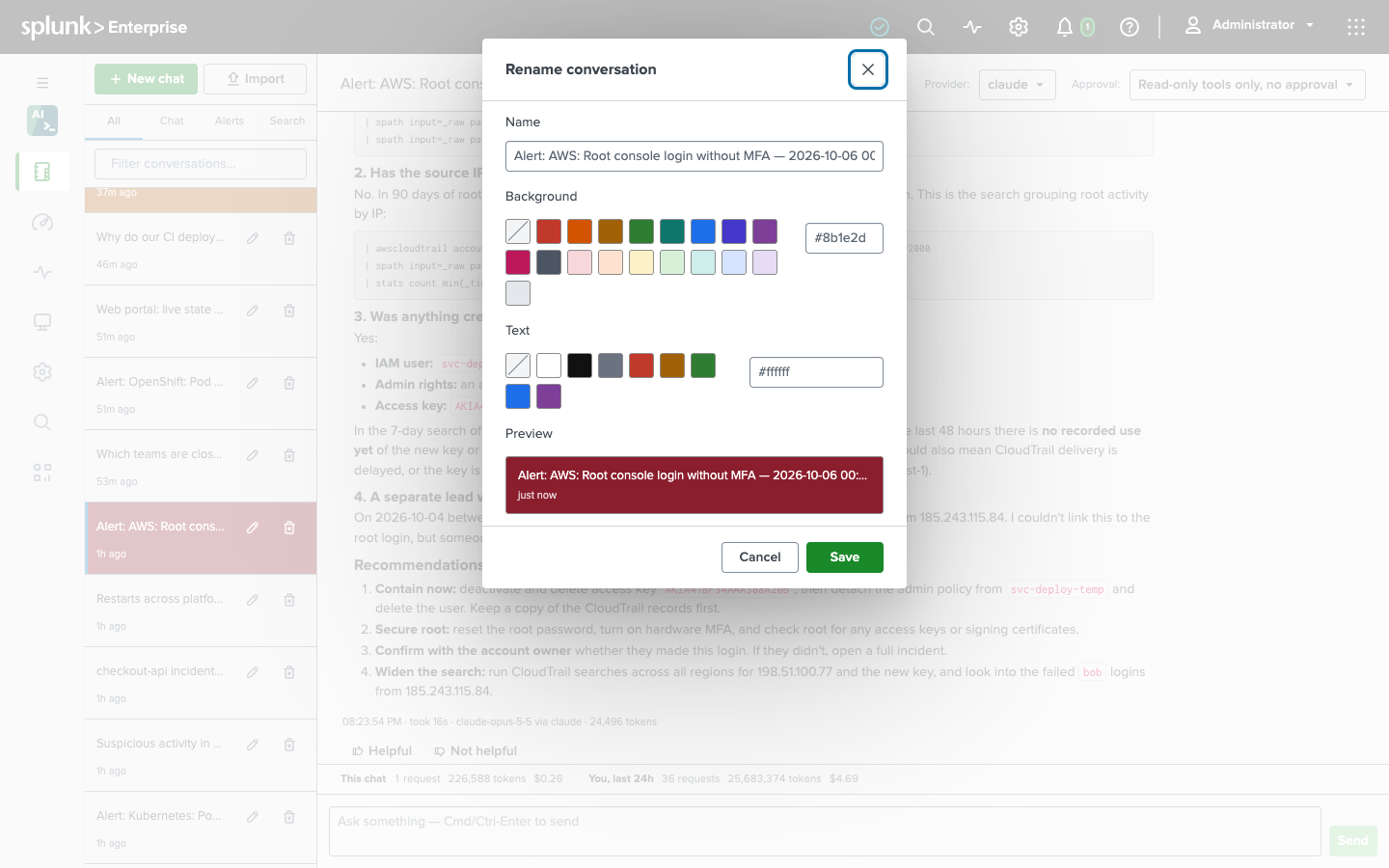
Color a conversation to find it again at a glance. The pencil opens a dialog with its name and the two colors its row is drawn in, a background and a text color, each picked from a palette or typed as a hex value such as #1f6feb; Default, the struck-through swatch, returns either one to the Splunk theme’s own. A preview shows the row as it will look, so a pair that is hard to read shows before you save it, and Save stays disabled while a typed value is not a hex color. The colors are stored with the conversation, not in the browser, so they follow you to another tab or machine, and nobody else’s list changes. The alert action can set the same colors on the conversations it opens.
A conversation runs as a background job, so you can reload the page or open it in another tab while the agent works - the progress keeps streaming and the reply arrives in the window you are looking at. Only one run at a time can be started on a conversation. A run the worker has not reached yet shows as Queued, with how long it has waited; the worker runs several conversations side by side (four per search head by default), so one long run does not hold up everyone else. Stop cancels a run; stopping a message before it starts running discards it.
What the agent does with a question
Ask something, and the agent decides which tools it needs: profile the data, run a search, list your indexes or macros, fetch an existing dashboard. Each tool it runs appears in the conversation as a one-line card - what it was, its key argument, whether it succeeded, a short result summary, and how long it took - and one click opens the full arguments and result, including the exact SPL of every search. Under each of the agent’s messages a small line reports when it was created, how long the provider call took, which provider and model served it, and the token total.
Good first questions are the ones the agent can answer from your deployment - “what indexes do I have?”, “profile index=payments over the last hour”, “which saved searches run every minute?” - and the questions that used to need documentation: “explain this search stage by stage”, “what does tstats need to be fast?”. The full list of what it can do is in Tools.
Approvals
Read-only tools run on their own. Anything that writes - creating or updating a dashboard, a saved search, a report, or an alert - pauses on an approval card that shows exactly what will be written: the title, every search, the schedule and actions of an alert. So does a search that uses anything beyond Splunk’s commands that only read - collect, outputlookup, sendemail, rest, or an add-on’s command an administrator has not allowed: the card shows the SPL, and it runs only if you approve, with your own permissions (see Security). You can:
- Approve - the tool runs as written.
- Deny - with a reason, which the agent reads and adapts to.
- Approve with edit - Edit args opens the parameters; correct them, then Approve with edits.
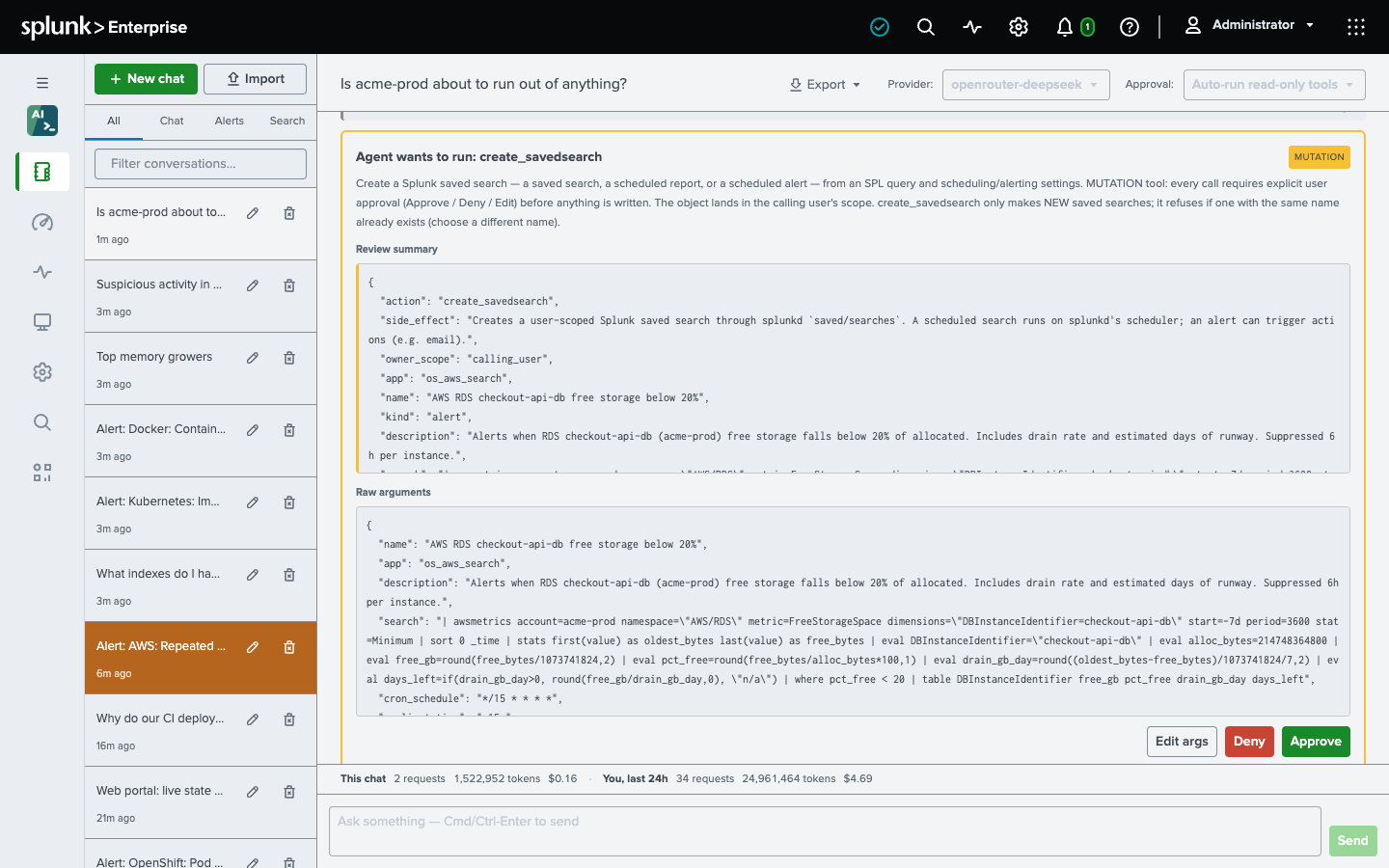
Updates are limited to your own private objects; the agent refuses to modify shared or other users’ dashboards and saved searches. Every approval, and who gave it, is recorded in the activity trail. An administrator who approves a tool call on another user’s paused run does not lend it their access: the run continues with its owner’s credential, and is refused if that credential has expired.
Per-conversation settings
The chat header carries two controls that apply to the open conversation:
- Provider - pin the conversation to one of the configured providers, or use the default. A pinned provider serves every turn of the conversation, with its own default model.
- Approval mode - Auto-run read-only tools (the default: writes pause, reads do not), Approve every tool call (full visibility, every tool pauses), or Read-only tools only, no approval (writes are refused outright).
The deployment-wide defaults for new conversations are on the Setup page’s Settings tab; see Configuration.
What is rendered
Model output - and the search results and imported conversations the model repeats - renders through one sanitizer, in Chat, in the HTML export and in the print view alike. Headings, tables, lists, code blocks and links render as written. Images, forms, embedded media and inline styles do not. A link may point only at http(s), mailto, or a path within this Splunk instance, and opens in a new tab with no handle back on the Splunk page; the “Open dashboard” link on a tool card is offered only when it is a real dashboard path.
Export and import
The Export menu in the chat header saves a conversation in five formats. Four are presentation copies, written entirely by the browser: Print / Save as PDF, a self-contained Web page, Markdown, and Plain text. The fifth, a JSON archive, is the complete record - every message, tool call, and result, and the conversation’s settings - assembled and signed by the search head, and the only format that imports again. It leaves out the conversation’s sidebar colors and origin, which describe your list rather than the conversation, so an import is listed under Chat without them. Treat an archive with the same care as the data it describes: it holds whatever the agent read from your deployment.
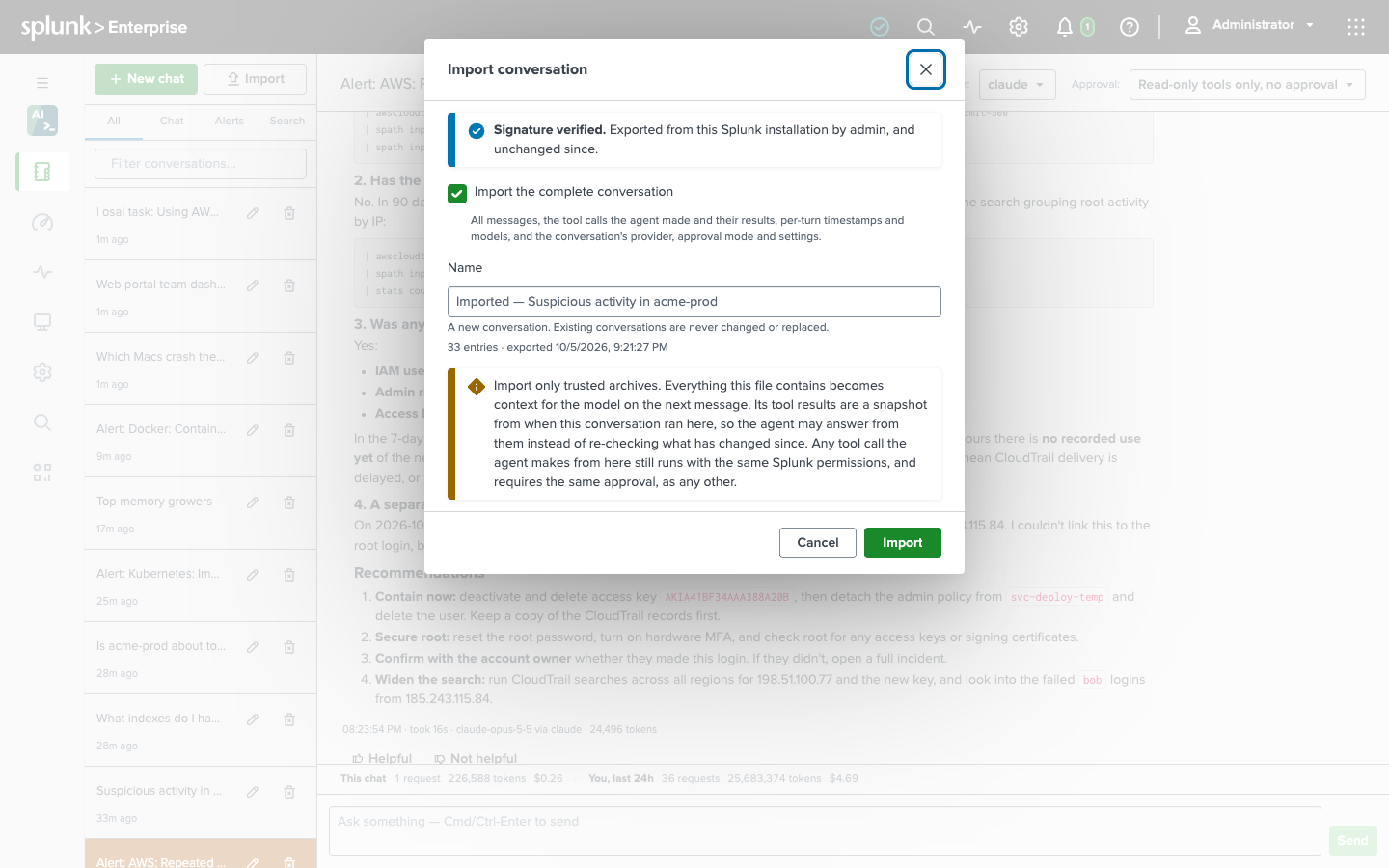
Import in the sidebar brings a JSON archive back as a new conversation, on the same deployment or another one - the way one engineer’s investigation becomes another’s starting point. Import the complete conversation (tool calls and results included, with the conversation’s own settings kept exactly as archived) or the conversation only (the messages, so the agent re-runs whatever it needs against your own deployment, starting from this deployment’s defaults like any new conversation). Either way the result is titled Imported - <original>, and an import cannot give the agent more freedom than it already has: the approval mode can only be the default or stricter, and every tool call still runs with your permissions.
Every archive carries the identity of the installation that signed it. At import the app says whether the archive came from this installation and is unchanged, has been changed since it was exported, or came from a different installation - and shows the exporting user and the signing key’s fingerprint so you can confirm it with whoever sent it.
Feedback and usage
Under each of the agent’s answers, Helpful and Not helpful record your feedback. Helpful is sent at once; Not helpful first asks what was wrong or missing, and the comment is optional. You can change your vote: each person has one vote per answer, and a second click replaces the first. Feedback can be given only in your own conversations, and it feeds the Health dashboard’s feedback panels and the Conversation inspector. The chat window shows you what the open conversation has cost and your own spend over the last 24 hours - the same rolling window the spend limits are enforced over. See Costs and limits.